Emails Disappeared from Your iPhone? Here’s the Fix!

Leanne puts her love of troubleshooting and repair to use managing our Ask an Expert Facebook group and has authored hundreds of how-to, Apple news, and gear review articles.
Learn More Leanne puts her love of troubleshooting and repair to use managing our Ask an Expert Facebook group and has authored hundreds of how-to, Apple news, and gear review articles.
Learn MoreWhat to Know
- Lost emails on your iPhone? Check your iPhone storage to make sure there is room for new email.
- If emails disappeared from your iPhone and storage is not the problem, open the Mail app, tap Mailboxes, Edit, and tap all items you want in Mailboxes.
- Long press the Mail app, tap Delete App, then reinstall Mail to find missing emails.
If emails disappeared from your iPhone or iPad inbox, don't panic. We'll go over how to retrieve disappearing emails on your iPhone and how to prevent mail from disappearing from your iPhone, too.
Is Your iPhone Not Showing Emails in the Inbox? Here's the Fix
There are a few reasons emails disappear on an iPhone or iPad. You may not have enough storage on your iPhone, your Mail app or email account may be glitching, or you may need to change your Mail settings. But there are a few simple fixes to try first if your iPad or iPhone is not showing emails in your inbox:
- Make sure that iPadOS or iOS is updated on your iPad or iPhone.
- Hard reboot your iPhone or iPad.
If emails are not showing up on your iPhone after these steps, read on.
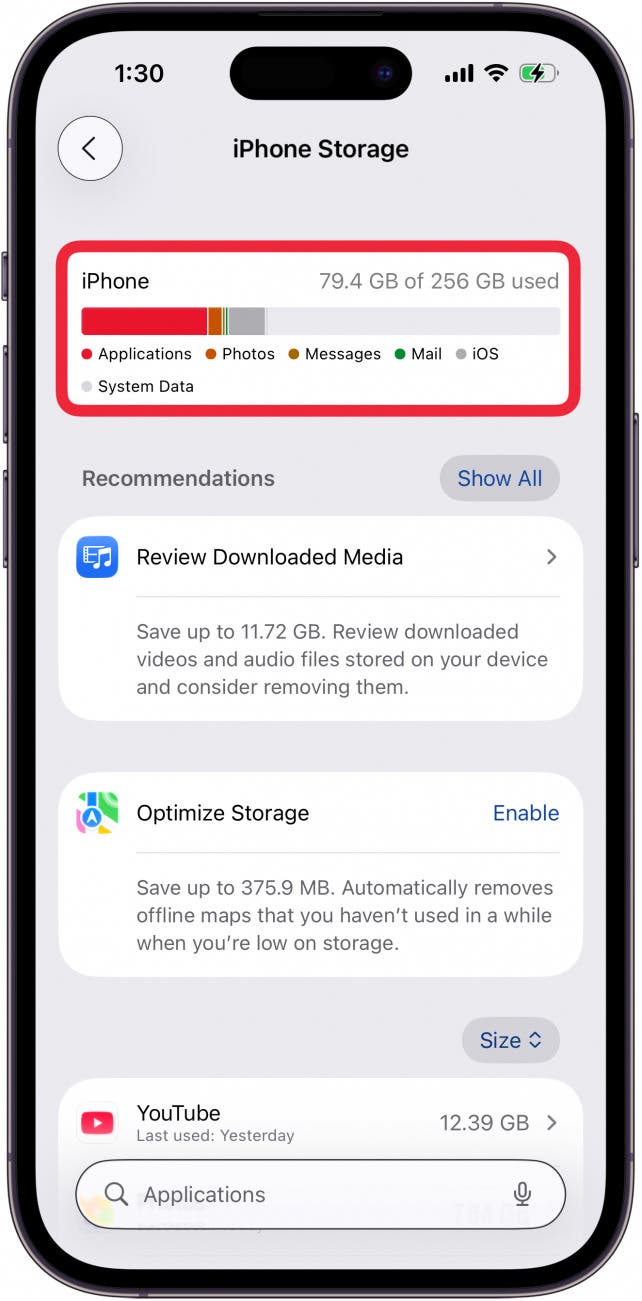
Check iPhone Storage & Free Up Space
According to Apple, your device may automatically remove data that is re-downloadable to free up storage space. So, if emails disappear from your iPhone or iPad, check your device storage and free up space if necessary!
Check Your Mailbox Settings
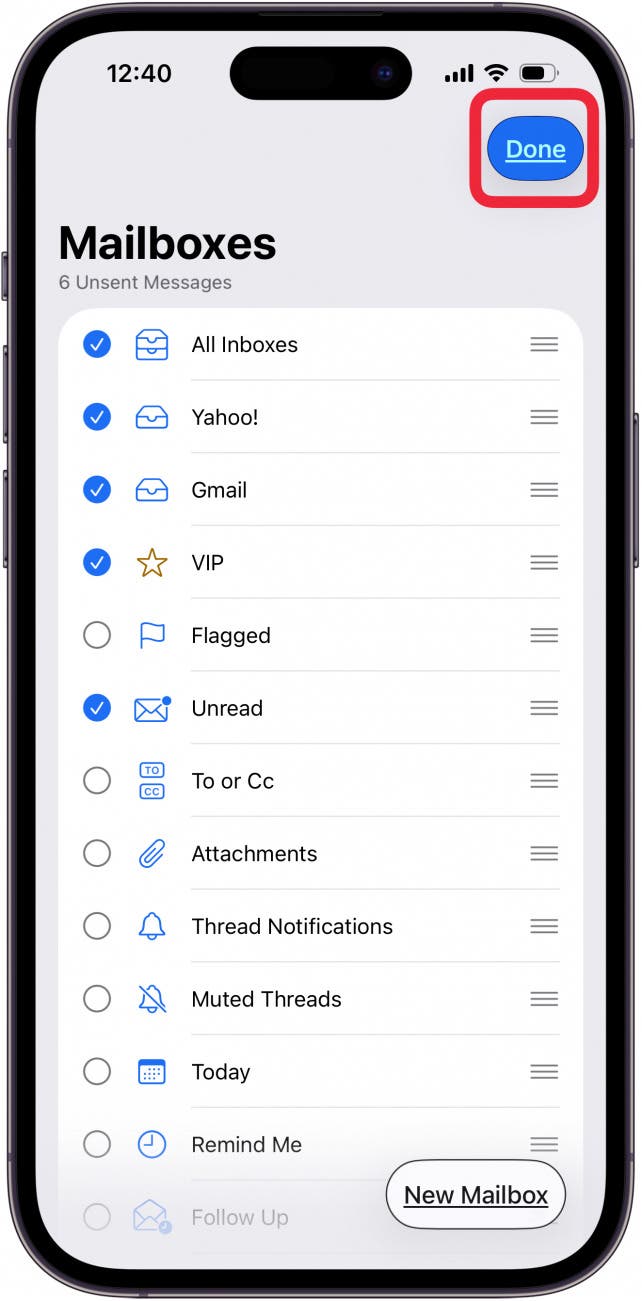
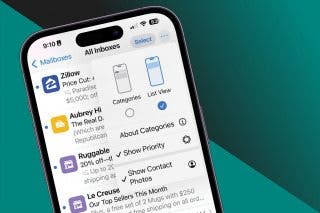
If some or all of your emails on your iPhone disappeared, there's a setting in the Mail app you need to look into. When you tap Edit on the Mailboxes page, you'll be able to choose which email categories are visible on your iPhone or iPad. If you have missing email on your iPhone or iPad, it may be that one of these categories was accidentally deselected. It's an easy fix to restore it!
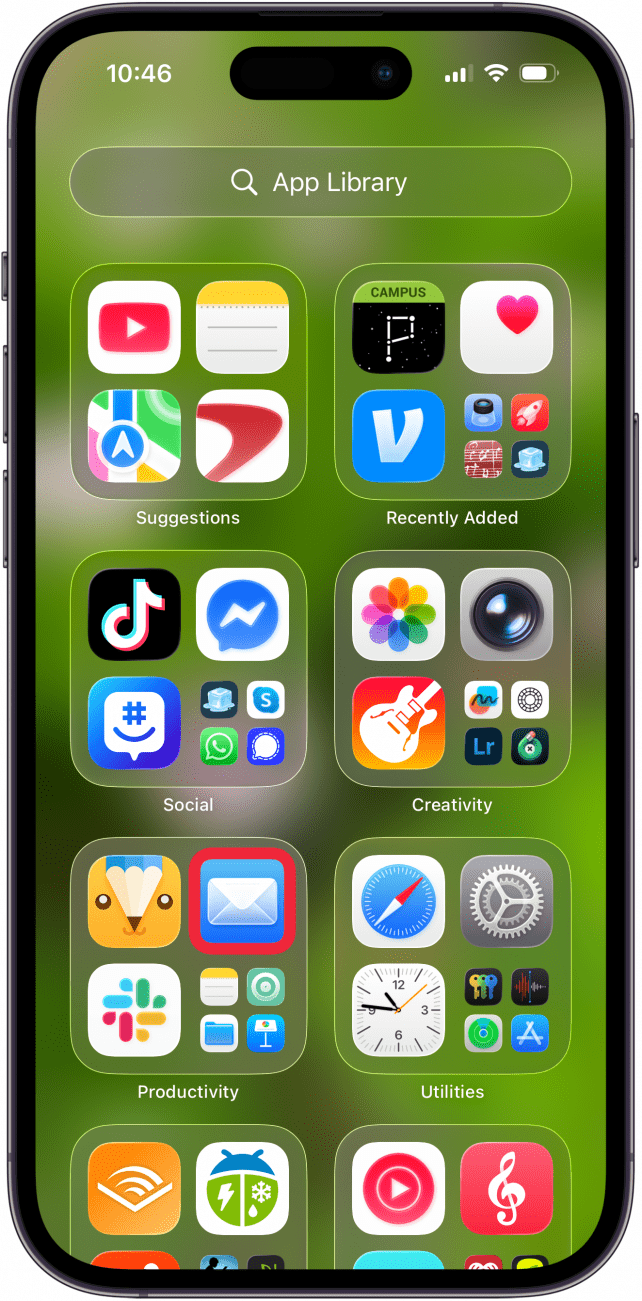
- Open the Mail app.
- Tap the caret at the top of the screen if you aren't in Mailboxes.

- Tap Edit.
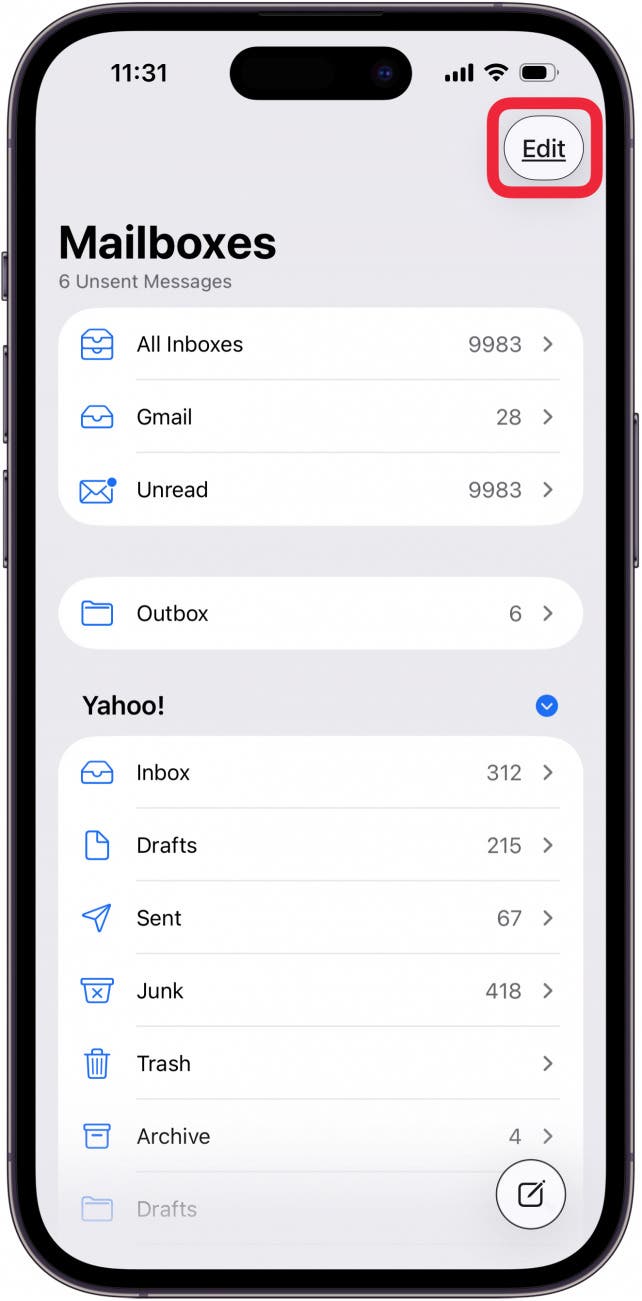
- Make sure all the inboxes and other email categories you're used to seeing are checked; tap the circle next to any missing categories.

- Tap Done when you've checked everything you need to, and your lost email should be back in the Mail app.
Delete and Reinstall the Mail App
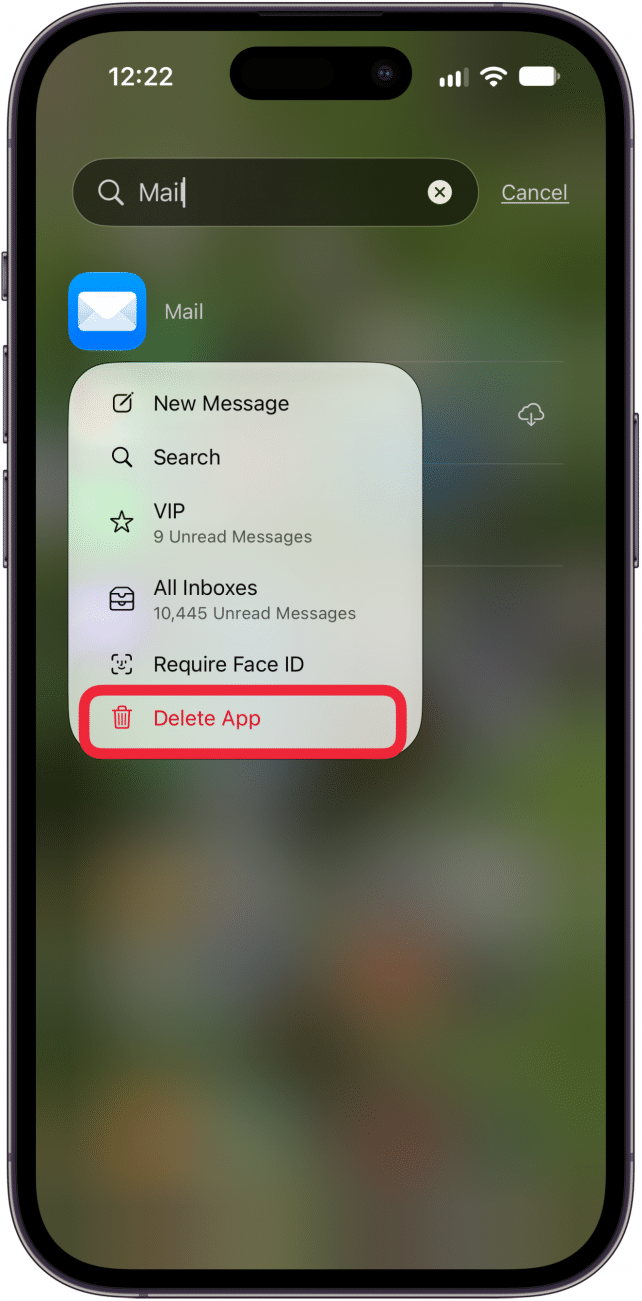
If your iPad or iPhone is not showing emails in the inbox still, delete the Mail app from your device by touching and holding the Mail app icon, then tapping Delete App. You can then reinstall the app by finding the Mail app in the App Store and tapping the Download icon. This step often gets rid of glitches and bugs, and will hopefully recover the disappeared emails on your iPhone.
Remove & Re-add the Email Account
The next thing to try if iPad or iPhone emails disappear is to delete the email account that the email disappeared from. To delete the account, open the Settings app, then tap Apps, Mail, Mail Accounts, then tap the account you want to remove, and tap Delete Account. Then, you can add the account back to your Mail app by opening Settings again, then tapping Apps, Mail, Accounts, Add Account, then tapping the email account you want to add back.

Did you get back the missing emails on your iPhone or iPad? If not, check in with Apple Support to see if they can assist you. Also, be sure to check out our free Tip of the Day for more great iPhone email tutorials!
FAQ
- Can you get deleted emails back on your iPhone? Yes; we have a tutorial on how to get back deleted emails. Keep in mind that deleted emails are usually stored for 30 days (sometimes less), so the window to recover them isn't indefinite!
- How long do iCloud emails stay in the trash? iCloud emails stay in the trash for up to 30 days. We have a tutorial on how to set how long deleted iCloud emails stay in the trash if you want to shorten that time.
- Why am I suddenly not receiving emails on my iPhone? If your email is not updating, there are several ways to fix the problem, including making sure your Wi-Fi or cellular connection is strong, updating your iPhone, and Resetting Network Connections.

Leanne Hays
Leanne Hays has more than sixteen years of experience writing for online publications. As a SEO Specialist and Feature Writer for iPhone Life, she has authored hundreds of how-to, Apple news, and gear review articles, as well as a comprehensive Photos App guide. Leanne holds degrees in education and science and loves troubleshooting and repair. This combination makes her a perfect fit as manager of our Ask an Expert service, which helps iPhone Life Insiders with Apple hardware and software issues.
In off-work hours, Leanne is a mother of two, homesteader, audiobook fanatic, musician, and learning enthusiast.
 Rachel Needell

 Amy Spitzfaden Both
 Olena Kagui
 Leanne Hays
 Linda Ruth
 Rhett Intriago