How to Use Apple Notes Collapsible Sections

Leanne puts her love of troubleshooting and repair to use managing our Ask an Expert Facebook group and has authored hundreds of how-to, Apple news, and gear review articles.
Learn More Leanne puts her love of troubleshooting and repair to use managing our Ask an Expert Facebook group and has authored hundreds of how-to, Apple news, and gear review articles.
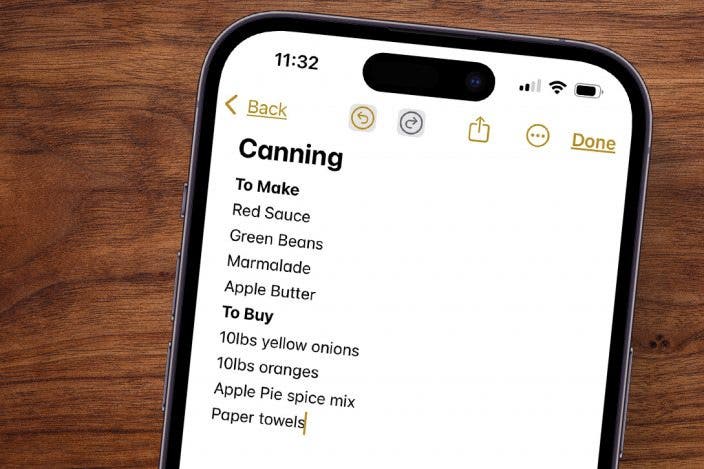
Learn MoreNotes app users, rejoice! The Apple Notes app now allows users to collapse one or more note sections on their iPhone. Here's how to make collapsible sections in Notes, so you can see all sections of your note without endless scrolling.
Why You'll Love This Tip
- Keep your notes tidy and organized with iPhone Notes' collapsible sections.
- Collapse sections to view all headings in your note at a glance.
- Make long, complicated notes more manageable and easily navigable.
How to Organize iPhone Notes with Collapsible Sections
System Requirements
This tip was performed on an iPhone 15 Pro running iOS 27. Find out how to update to the latest version of iOS.
Can you make collapsible sections in Apple Notes? You can! With the Apple Notes collapsible sections feature, you can collapse the contents of sections into subheadings, subheadings into headings, and the entire note into the title. Be sure to check out our free Tip of the Day for more great Apple Notes App tutorials. iPhone Notes collapsible sections are a great way to organize iPhone notes, so let's get started learning how to create collapsible sections in Notes.
- Open the Notes app.
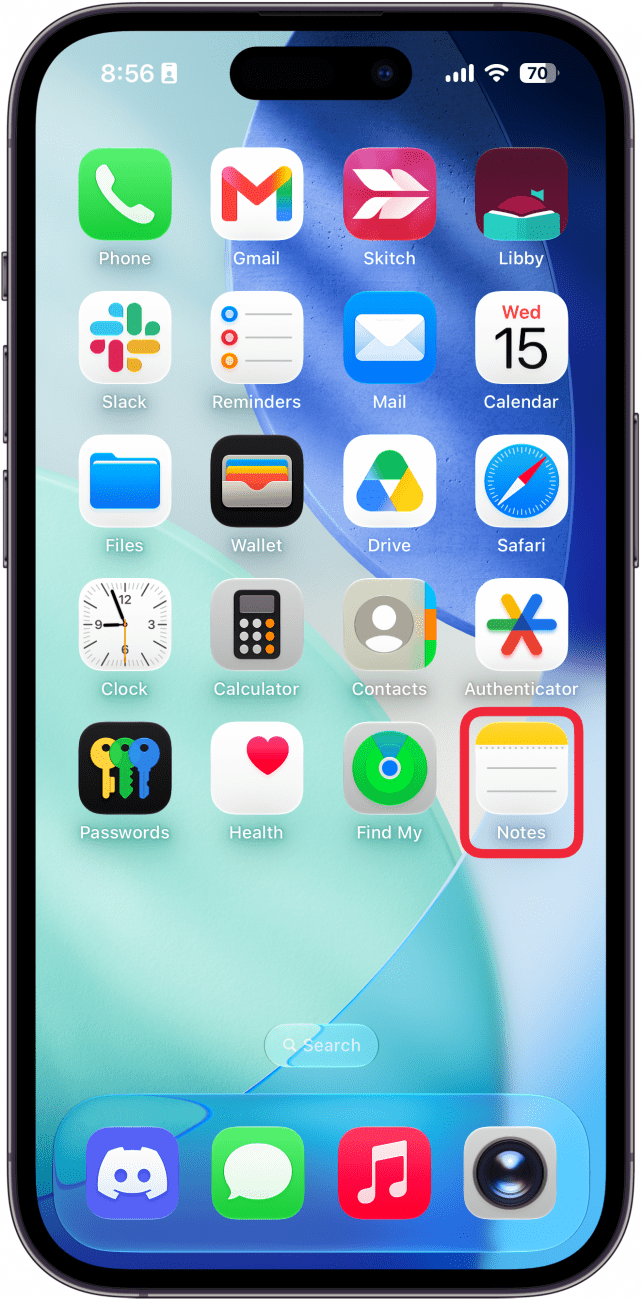
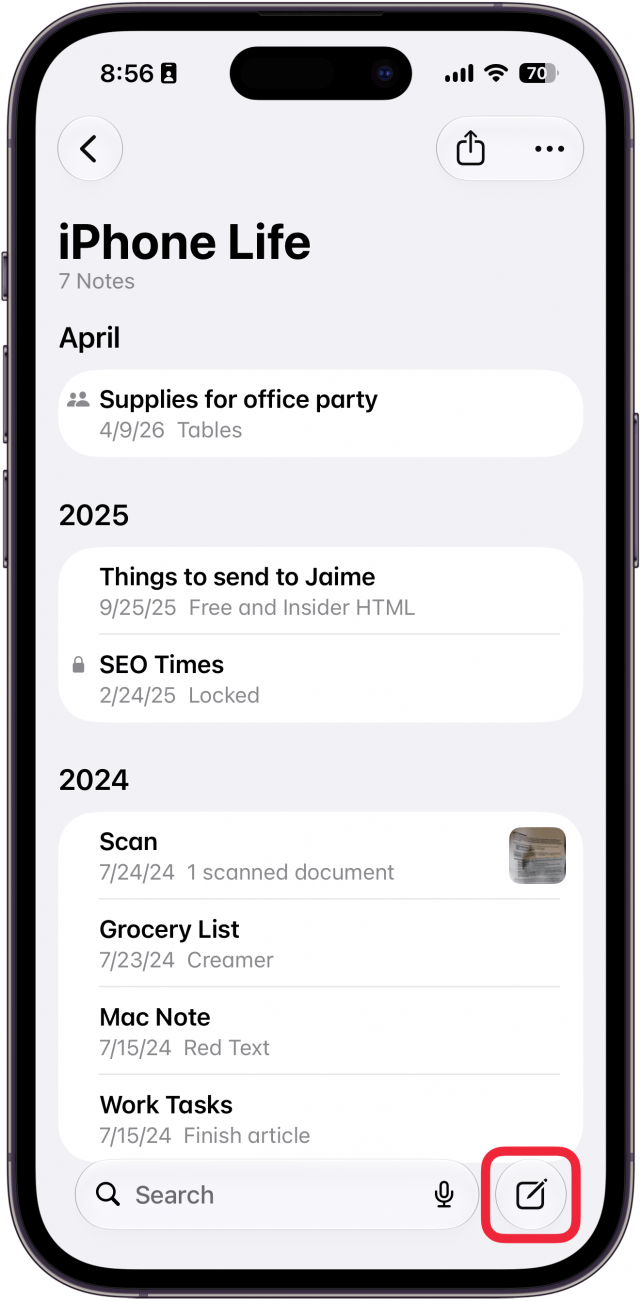
- Tap the new note icon at the bottom-right corner of your screen.
- Add a title to your note, tap return, and then tap the Aa icon.
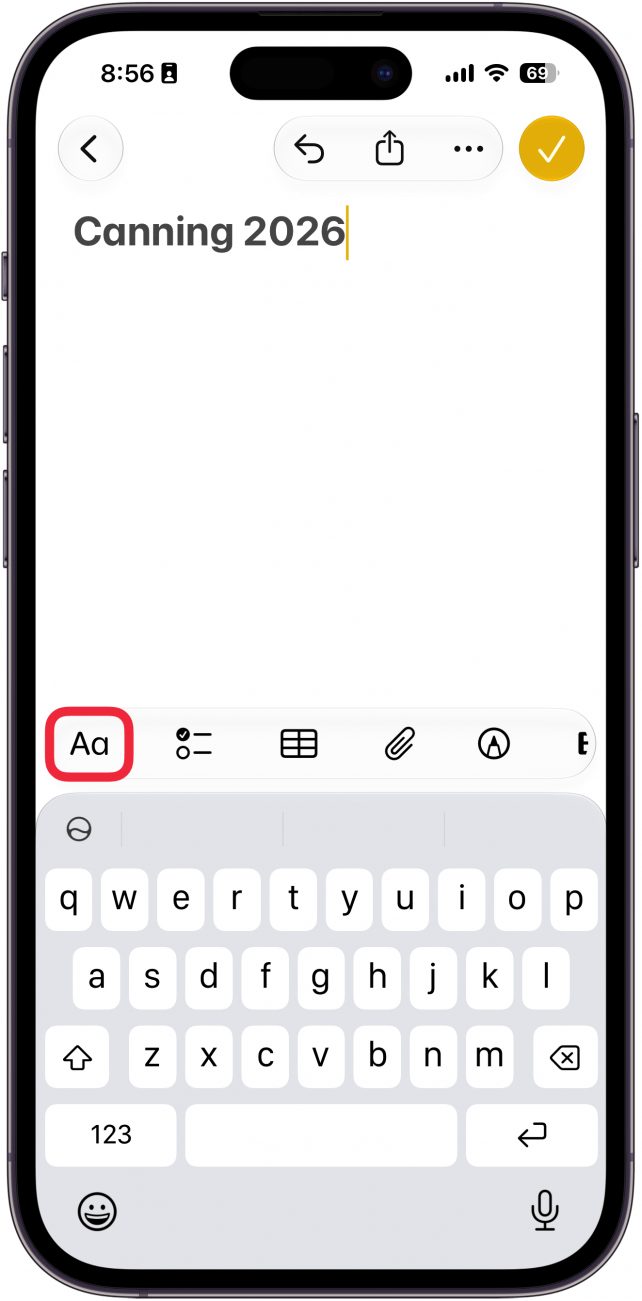
- Tap Heading or Subheading.
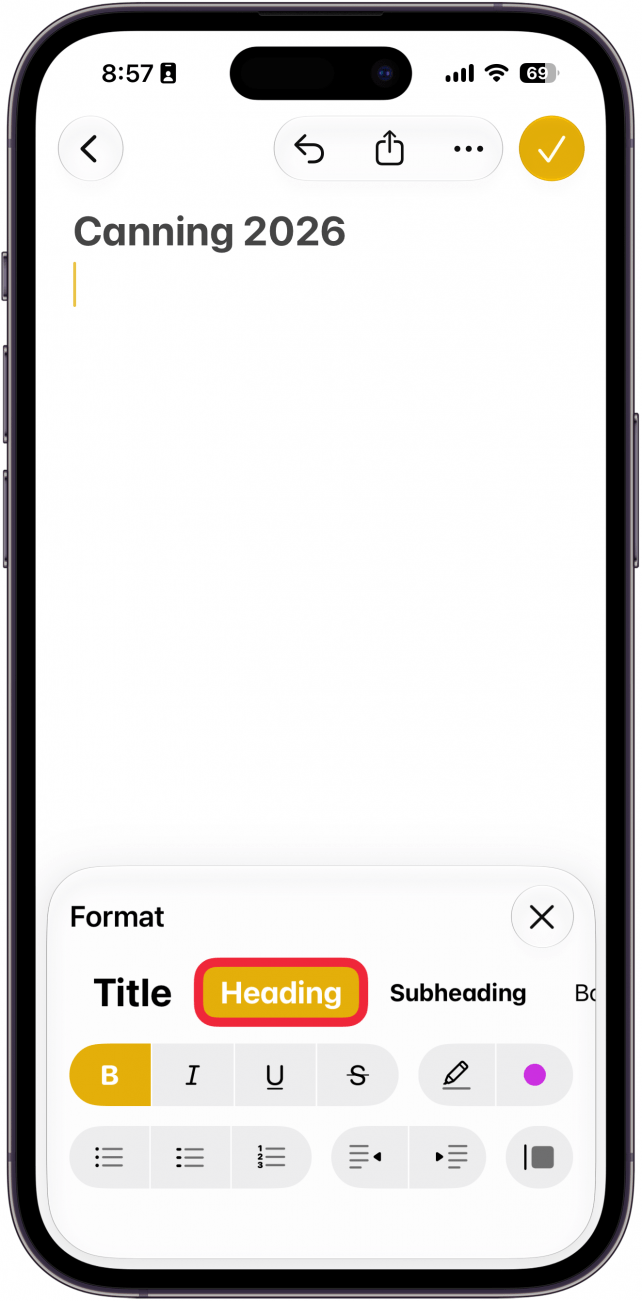
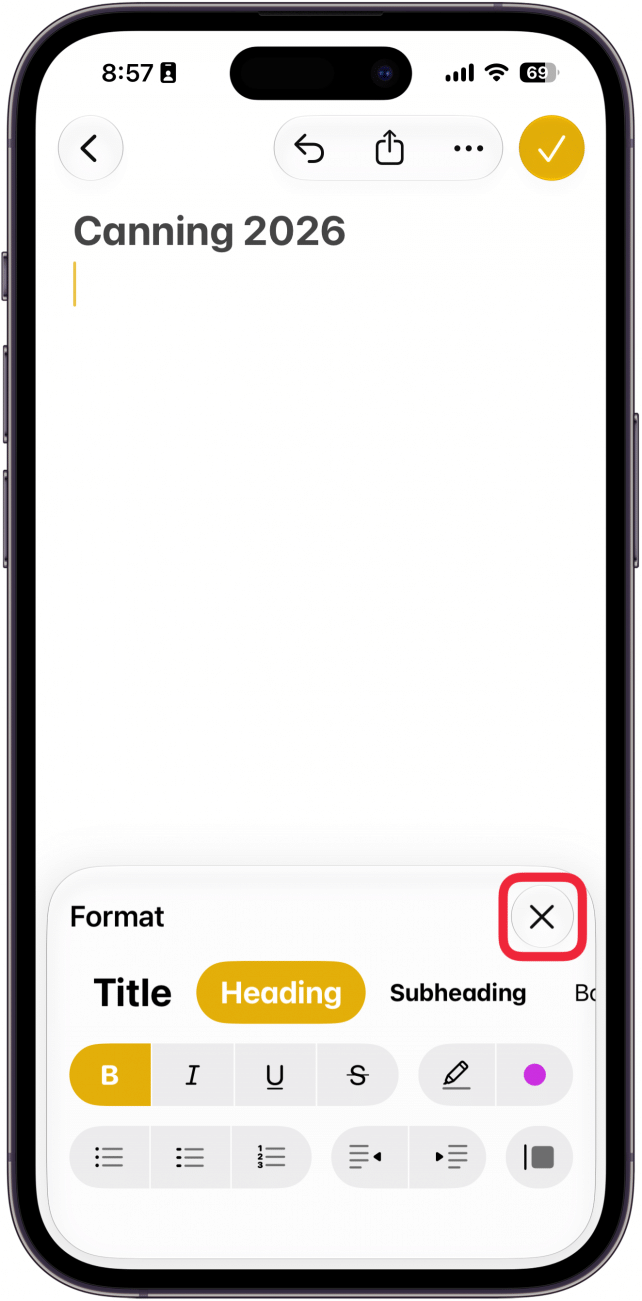
- Tap the X to close the Format menu and add your headings. You should also add regular text under your headings now.
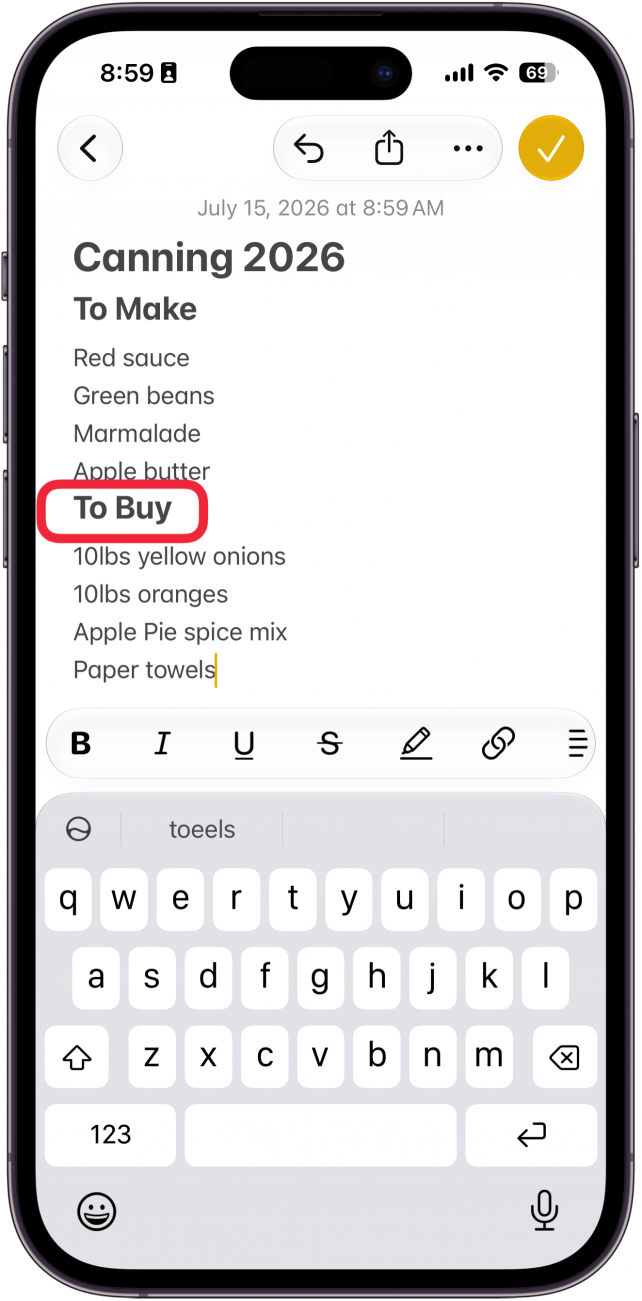
- Once you've added your headings, tap one.
- Tap the caret to collapse the section. You'll need to have added items under your heading for the caret to appear.
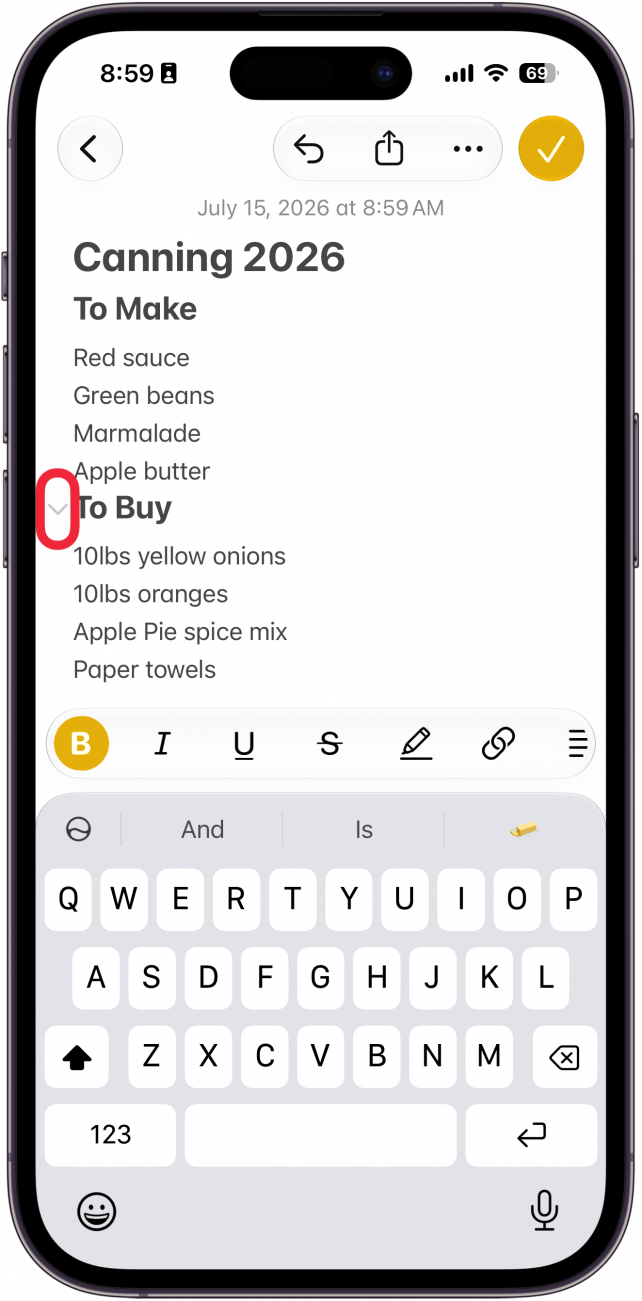
- To uncollapse a section, tap the caret again.
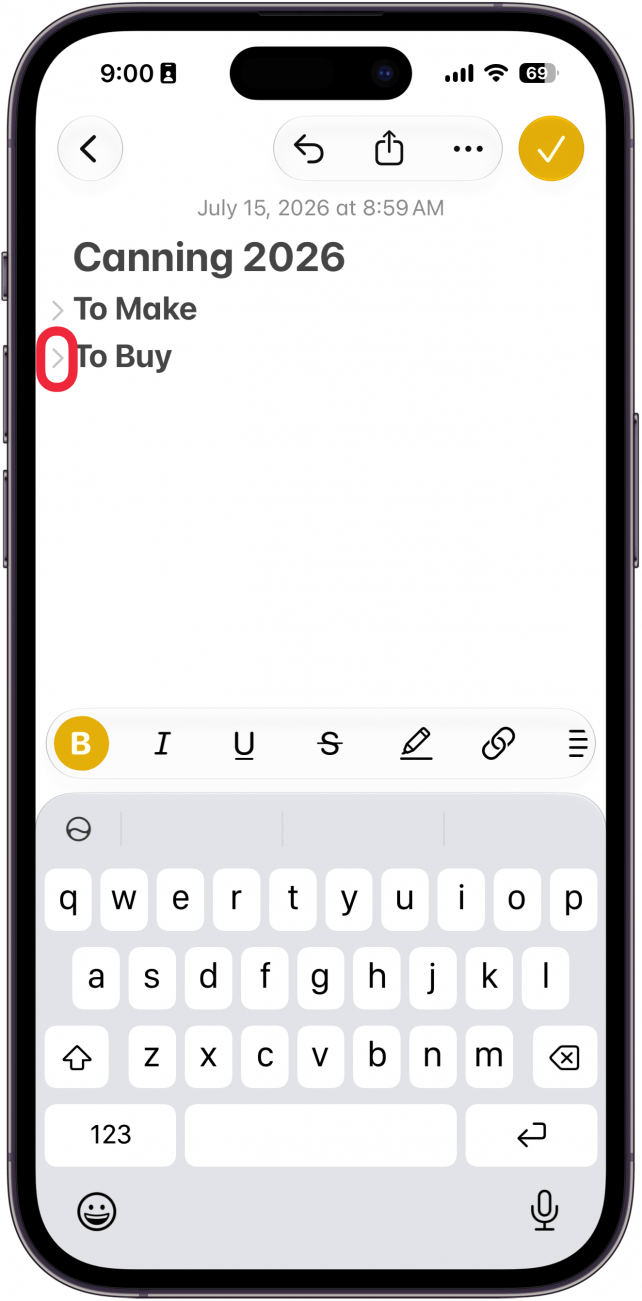
Tap at the end of the header or subheader to reveal the caret again, then tap the caret to show the contents of that section. Headings won't collapse into each other, but subheadings will collapse into their heading. If you have more than one title in your note, everything will collapse into the first title. Now you know how to make collapsible sections in Notes. The Notes app collapsible sections are super useful for keeping your notes organized!
More On: Apple's Notes App
Top image credit: Guiyuan Chen / Shutterstock.com

Every day, we send useful tips with screenshots and step-by-step instructions to over 600,000 subscribers for free. You'll be surprised what your Apple devices can really do.

Leanne Hays
Leanne Hays has more than sixteen years of experience writing for online publications. As a SEO Specialist and Feature Writer for iPhone Life, she has authored hundreds of how-to, Apple news, and gear review articles, as well as a comprehensive Photos App guide. Leanne holds degrees in education and science and loves troubleshooting and repair. This combination makes her a perfect fit as manager of our Ask an Expert service, which helps iPhone Life Insiders with Apple hardware and software issues.
In off-work hours, Leanne is a mother of two, homesteader, audiobook fanatic, musician, and learning enthusiast.
Related Articles

 Amy Spitzfaden Both
Apple Vision Pro: the AR Headset That Could Change Everything
 Cullen Thomas
 Rachel Needell
 Olena Kagui
 Rhett Intriago
 Susan Misuraca

Lines on iPhone Screen after Dropping Phone? Try This First






 Leanne Hays