How to Lock Safari Tabs with Face ID

With 10-plus years of experience with Apple devices, Rachel specializes in all things iPad and is a Notes app expert. Find her writing in the Daily Tip newsletter and iPhone Life magazine.
Learn More With 10-plus years of experience with Apple devices, Rachel specializes in all things iPad and is a Notes app expert. Find her writing in the Daily Tip newsletter and iPhone Life magazine.
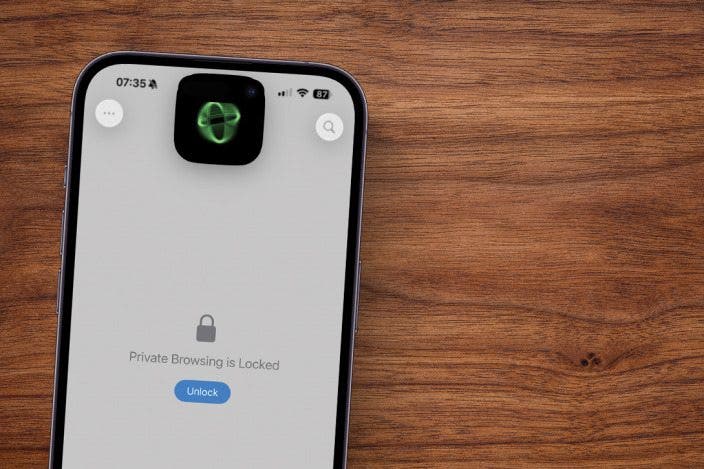
Learn MoreExperience increased security measures with the built-in private browsing Safari feature. Apple is introducing a feature that can be toggled on that will require Face ID (or Touch ID, depending on your iPhone model) to access private browsing. This means that if you hand your iPhone to someone while it's unlocked, they still won't be able to view any private browsing tabs you have open. Here's how it works!
Why You'll Love This Tip
- Beef up the security around your private browsing tabs on Safari.
- Even if your iPhone is unlocked, your private tabs are still secure.
- Use Private Browsing to completely block known trackers and remove tracking added to URLs as you browse.
How to Enable the Safari Browser Private Browsing Feature
System Requirements
This tip was performed on an iPhone 17 Pro Max running iOS 26.3. Find out how to update to the latest version of iOS.
What is private browsing? It automatically clears your browsing history and AutoFill information, but this will give you an extra layer of security. For more tips, don't forget to sign up for our free Tip of the Day! Here's how to browse in 'privacy mode':
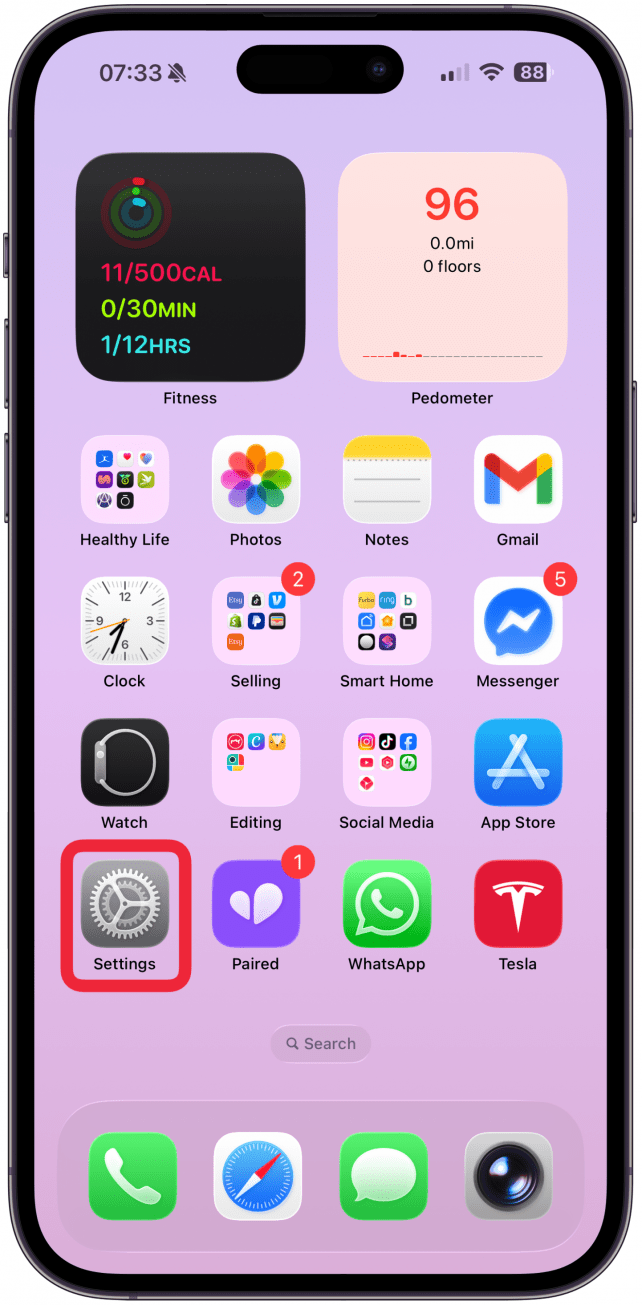
- On your iPhone, open Settings.
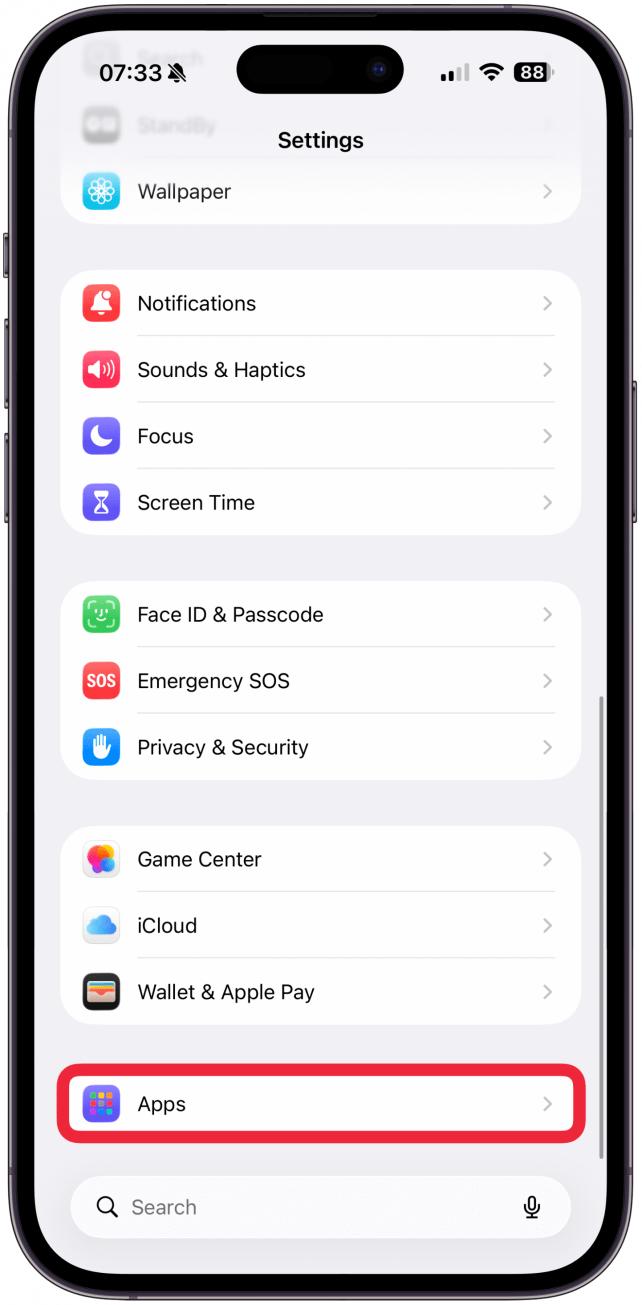
- Scroll to the very bottom and tap on Apps.
- Select Safari.
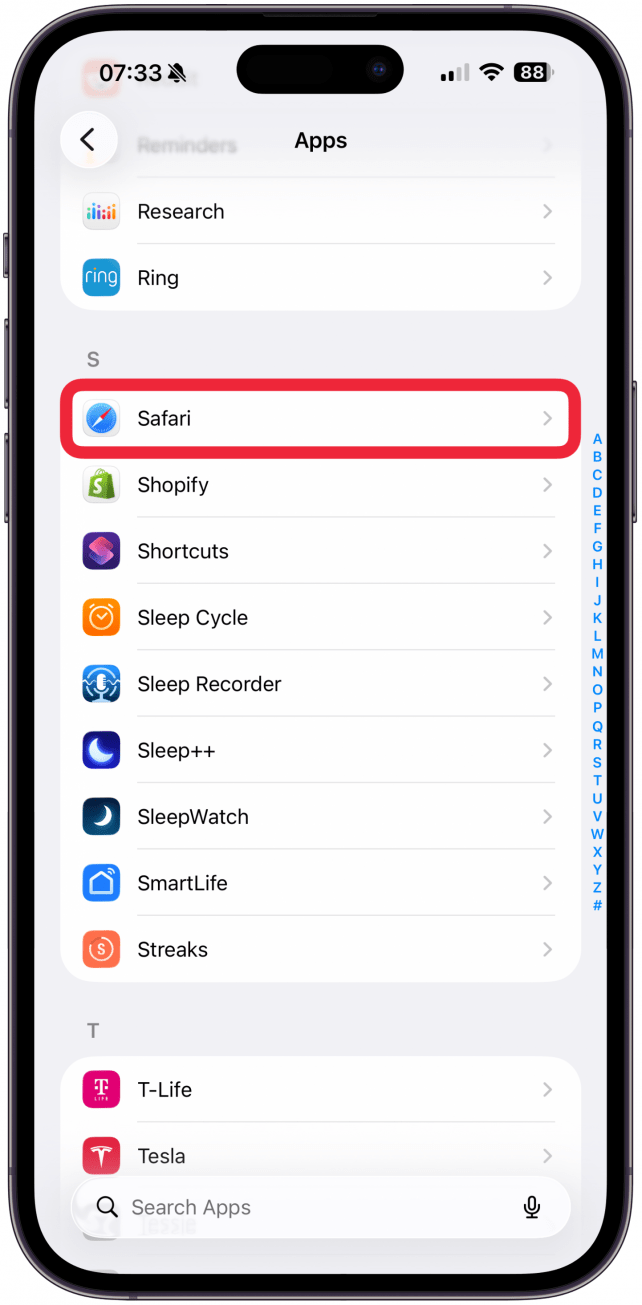
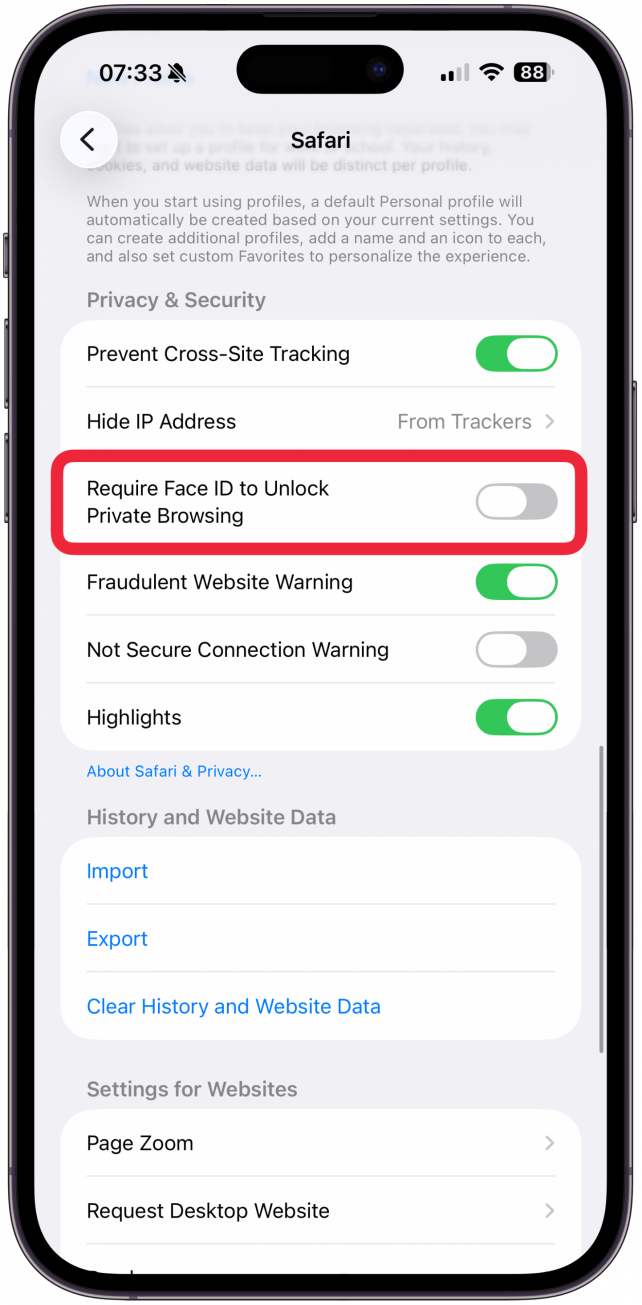
- Scroll down to Privacy & Security, and toggle on Require Face ID to Unlock Private Browsing.
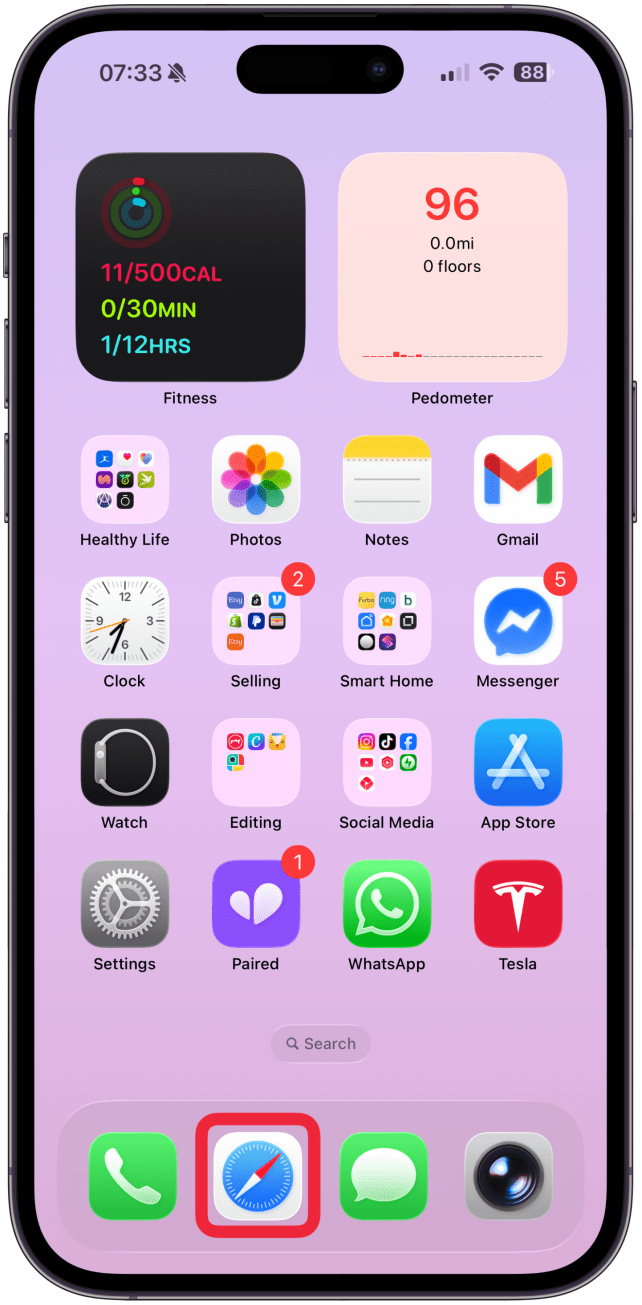
- Now, to see how it works, open Safari.
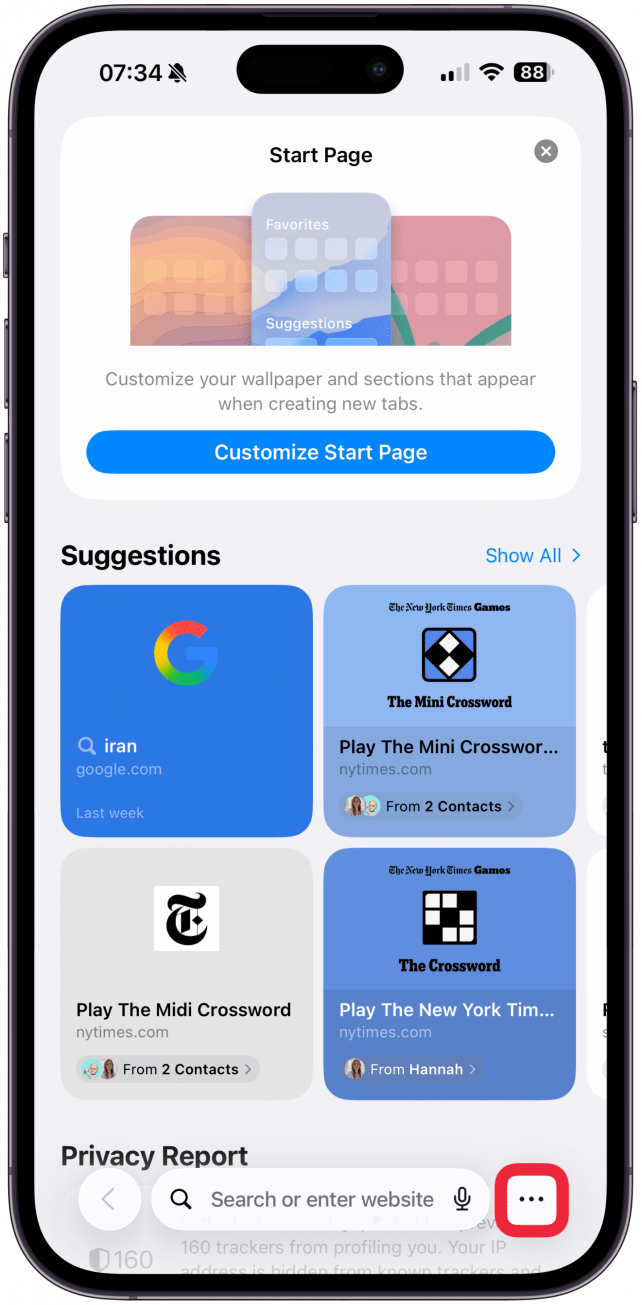
- Tap the More icon.
- Select Private Browsing.
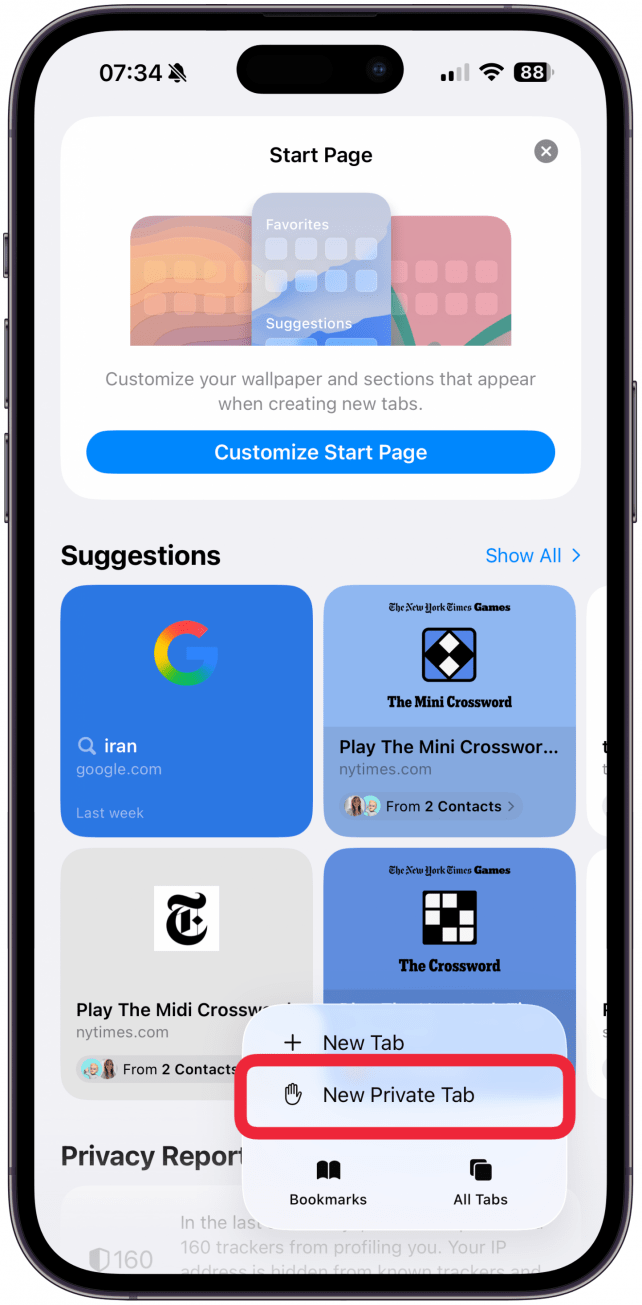
- If you lock and then unlock your phone, Face ID will automatically pop up, and then you can access your open private tabs.
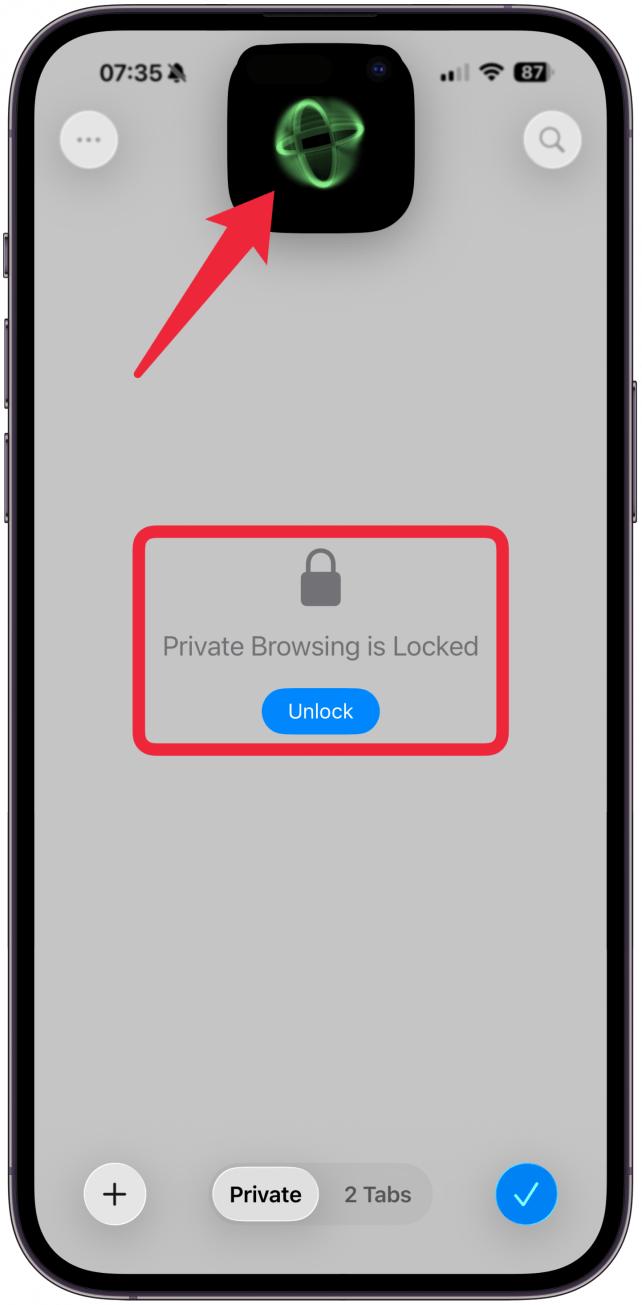
And that's how to turn on private browsing on iPhone! As someone who really values my privacy, I think this is an extremely useful feature, and I will be using it from here on out. Next, learn how to turn off private browsing.
More On: Safari App
Top image credit: Guiyuan Chen / Shutterstock.com

Every day, we send useful tips with screenshots and step-by-step instructions to over 600,000 subscribers for free. You'll be surprised what your Apple devices can really do.

 Leanne Hays
 Amy Spitzfaden Both
 Rachel Needell
 Olena Kagui

 Susan Misuraca
 Rhett Intriago

 Ashleigh Page