How to Hide Distracting Items in Safari Pages on Your iPhone


Leanne puts her love of troubleshooting and repair to use managing our Ask an Expert Facebook group and has authored hundreds of how-to, Apple news, and gear review articles.
Learn More Leanne puts her love of troubleshooting and repair to use managing our Ask an Expert Facebook group and has authored hundreds of how-to, Apple news, and gear review articles.
Learn MoreTired of cluttered Safari web pages? Here's how to use Hide Distracting Items to get rid of ads and more from Safari pages you visit.
Why You'll Love This Tip
- Hide distracting items in Safari to streamline webpages.
- See only what's important to you in Safari webpages.
How to Hide Distracting Items in Safari on iPhone & iPad
System Requirements
This tip was tested on an iPhone 17 Pro running iOS 26.4. Learn how to update to the latest operating system.
You can get rid of distractions in Safari webpages in just a few easy steps. Here's how to hide distracting items in Safari.
Note: Content that updates frequently, like ads, may reappear even if you use Hide Distracting Items to get rid of them. You can use Reader mode to get around this problem.
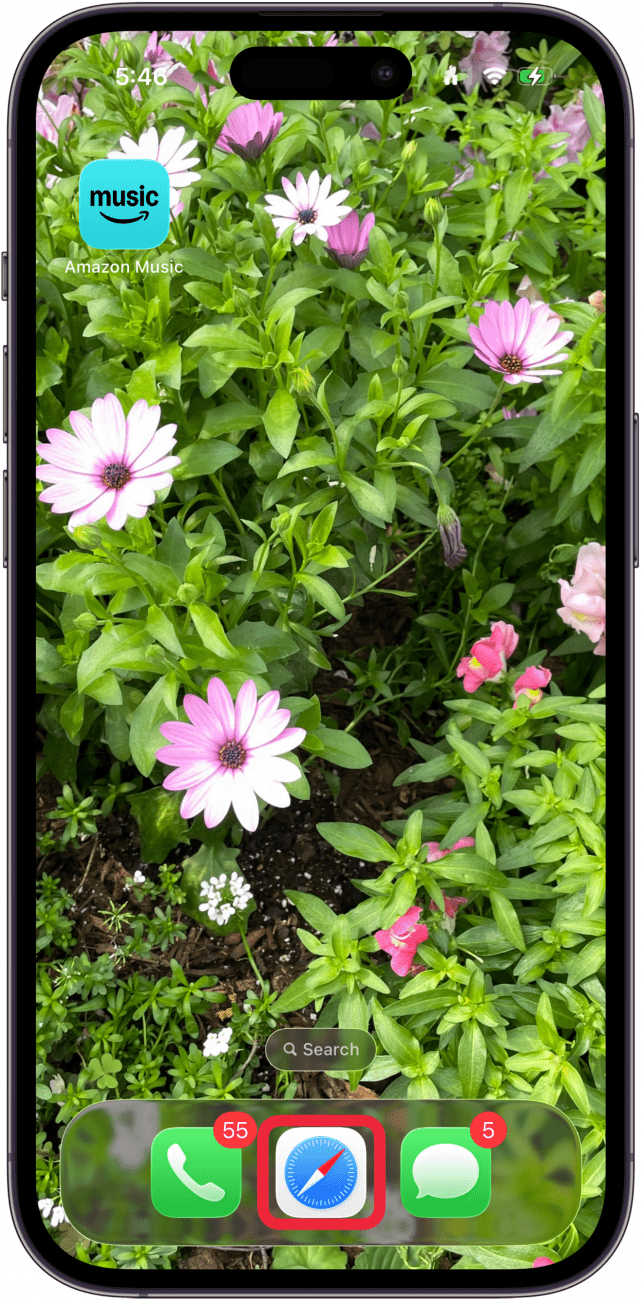
- Open the Safari app.
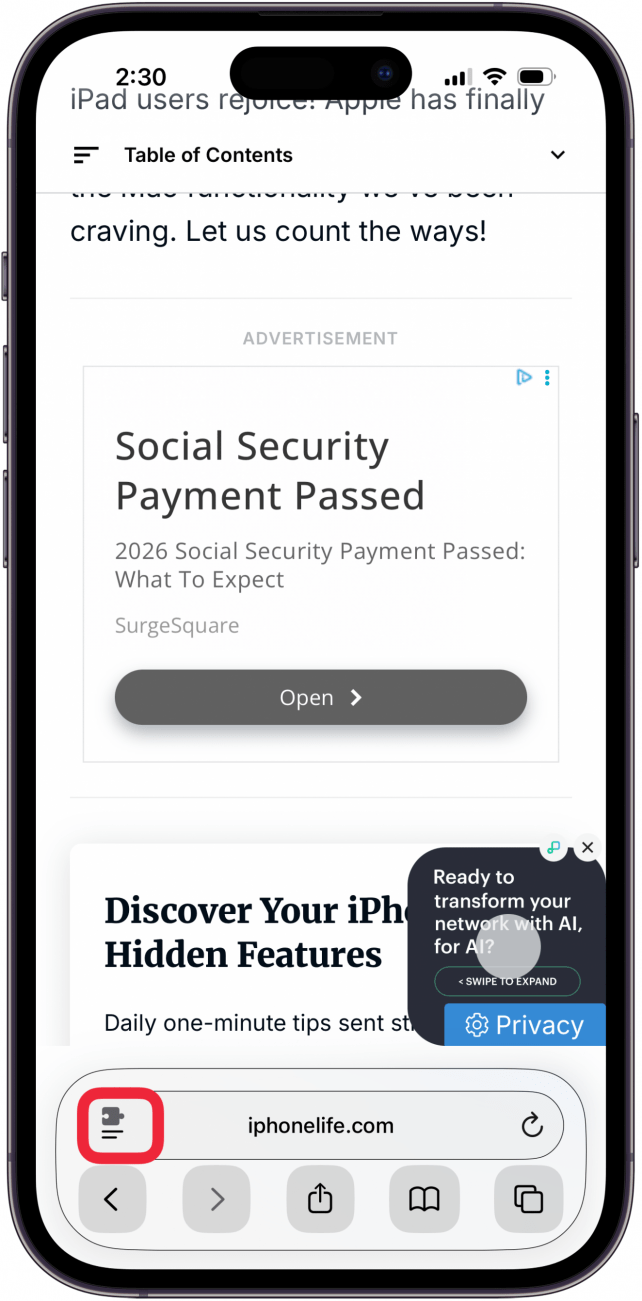
- Tap the Page Menu button in the Smart Search field.
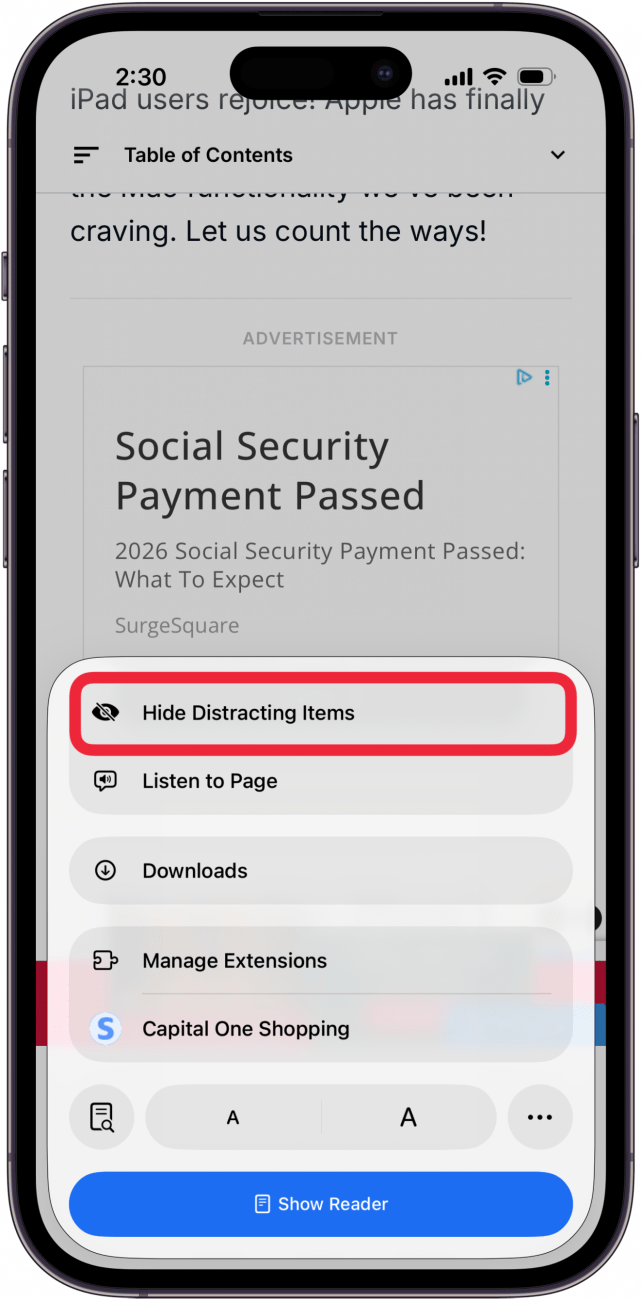
- Tap Hide Distracting Items.
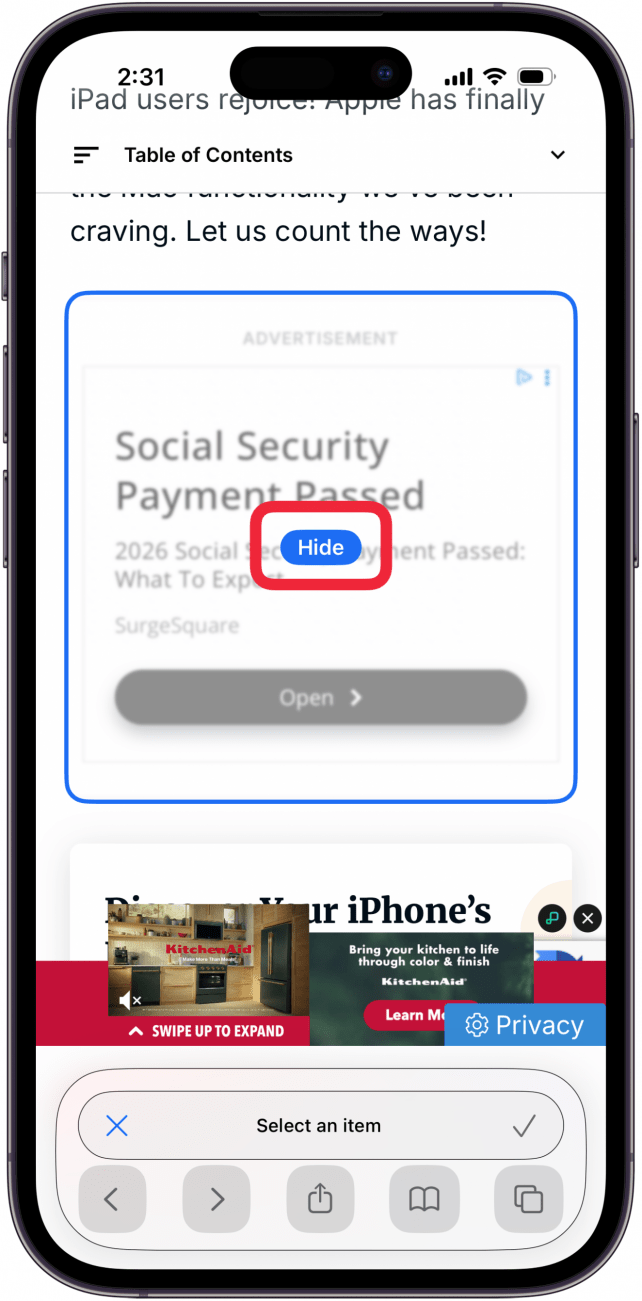
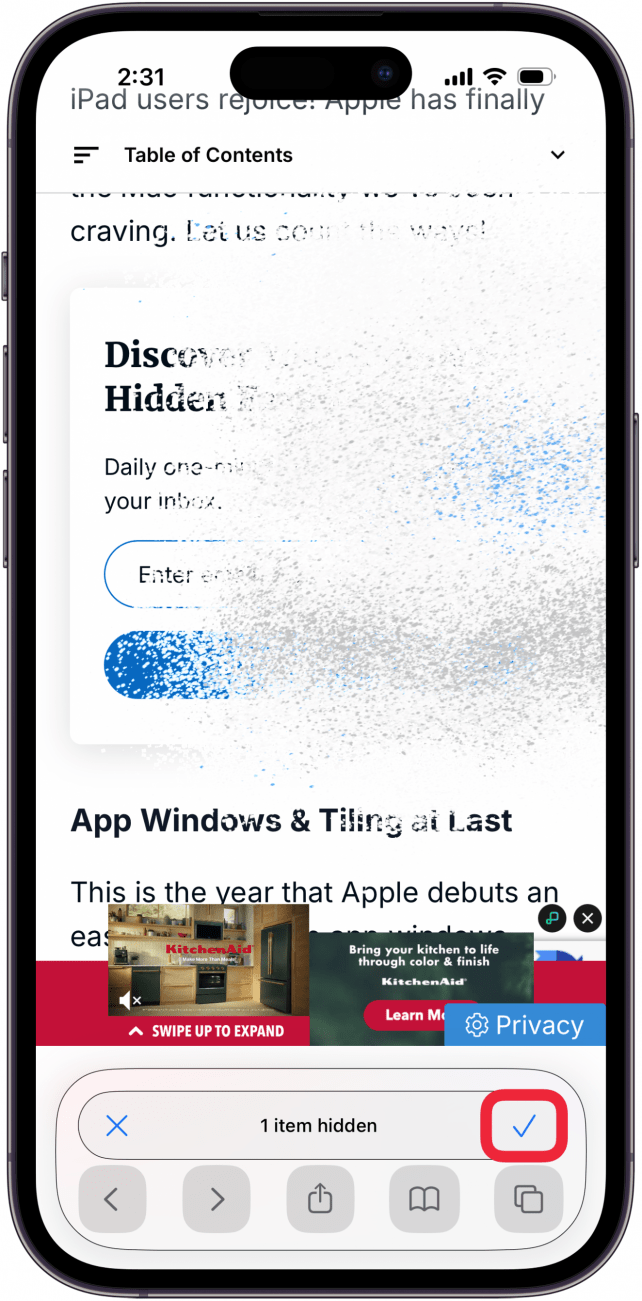
- As you navigate the page, you'll see a border around items you can hide. Tap Hide in any of these boxes.
- Tap the check mark in the Smart Search field when you're finished hiding distracting items.
More On: Reducing Distractions

Every day, we send useful tips with screenshots and step-by-step instructions to over 600,000 subscribers for free. You'll be surprised what your Apple devices can really do.

Leanne Hays
Leanne Hays has more than sixteen years of experience writing for online publications. As a SEO Specialist and Feature Writer for iPhone Life, she has authored hundreds of how-to, Apple news, and gear review articles, as well as a comprehensive Photos App guide. Leanne holds degrees in education and science and loves troubleshooting and repair. This combination makes her a perfect fit as manager of our Ask an Expert service, which helps iPhone Life Insiders with Apple hardware and software issues.
In off-work hours, Leanne is a mother of two, homesteader, audiobook fanatic, musician, and learning enthusiast.

 Rhett Intriago
 Rachel Needell
 Olena Kagui
 Leanne Hays
 Donna Schill



 Hal Goldstein