Turn Off Security Delay on iPhone in Seconds

A lifelong tech enthusiast, with experiences ranging from jailbreaking his iPhone to building his own gaming PC, Rhett specializes in maintaining privacy in a digital world and iPhone security.
Learn More A lifelong tech enthusiast, with experiences ranging from jailbreaking his iPhone to building his own gaming PC, Rhett specializes in maintaining privacy in a digital world and iPhone security.
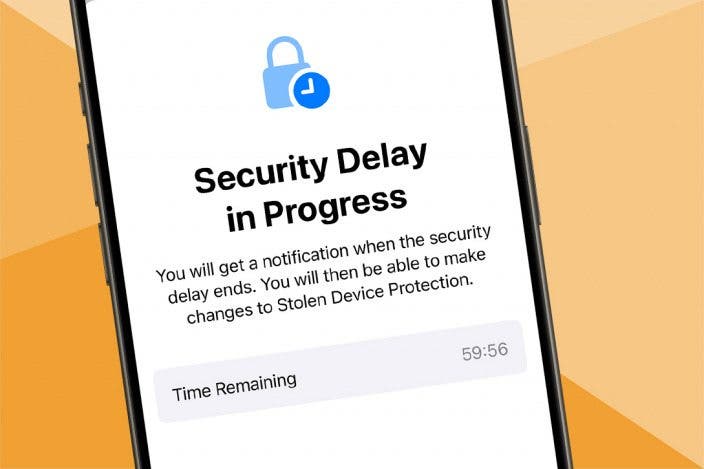
Learn MoreA couple of years ago, a series of iPhone thefts that led to users losing access to their Apple Accounts prompted Apple to add a feature called Stolen Device Protection. This feature has a security delay that prevents changes to your Apple Account or iPhone security when away from familiar locations. Here's how to turn off the security delay on your iPhone.
Why You'll Love This Tip
- Adjust your iPhone's security settings without having to wait an hour.
- Easily change your passcode or Face ID settings when you're away from home.
How to Turn Off Security Delay on iPhone
System Requirements
This tip was performed on an iPhone 15 Pro running iOS 26.2.1. Find out how to update to the latest version of iOS.
What is Security Delay on iPhone? Stolen Device Protection is a security feature that keeps your device secure by preventing any changes from being made to your iPhone security or your Apple Account details. This feature was added when there was a rise in iPhone thefts in which the thieves would be able to change the user's Apple Account password and take over their whole account.
The security delay in Stolen Device Protection means that if you are not at a familiar location, such as your home, any changes to your device security or Apple Account details require you to wait one hour to take effect. For more tips on keeping your iPhone secure, be sure to sign up for our free Tip of the Day newsletter, which includes our weekly privacy and security newsletter!
So, if you don't want to use a security delay on your iPhone, how do you disable it? Well, since this feature is integral to Stolen Device Protection, you will need to disable Stolen Device Protection. Here's how to remove the Security Delay on your iPhone:
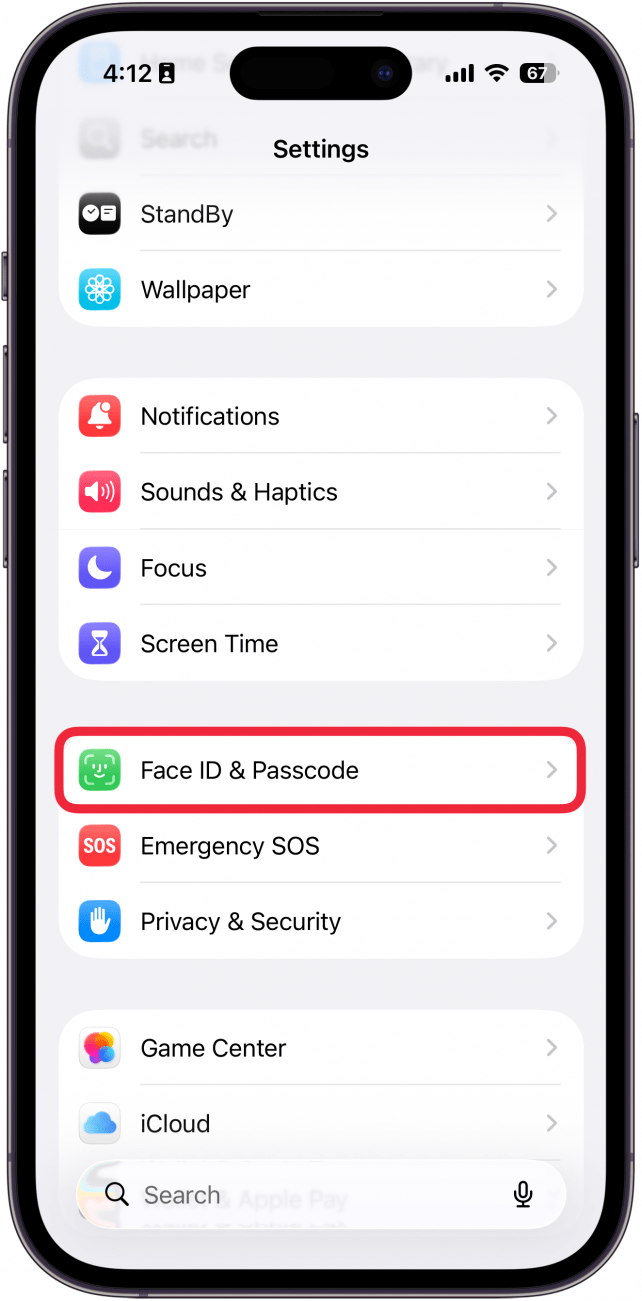
- Open the Settings app, and select Face ID & Passcode.
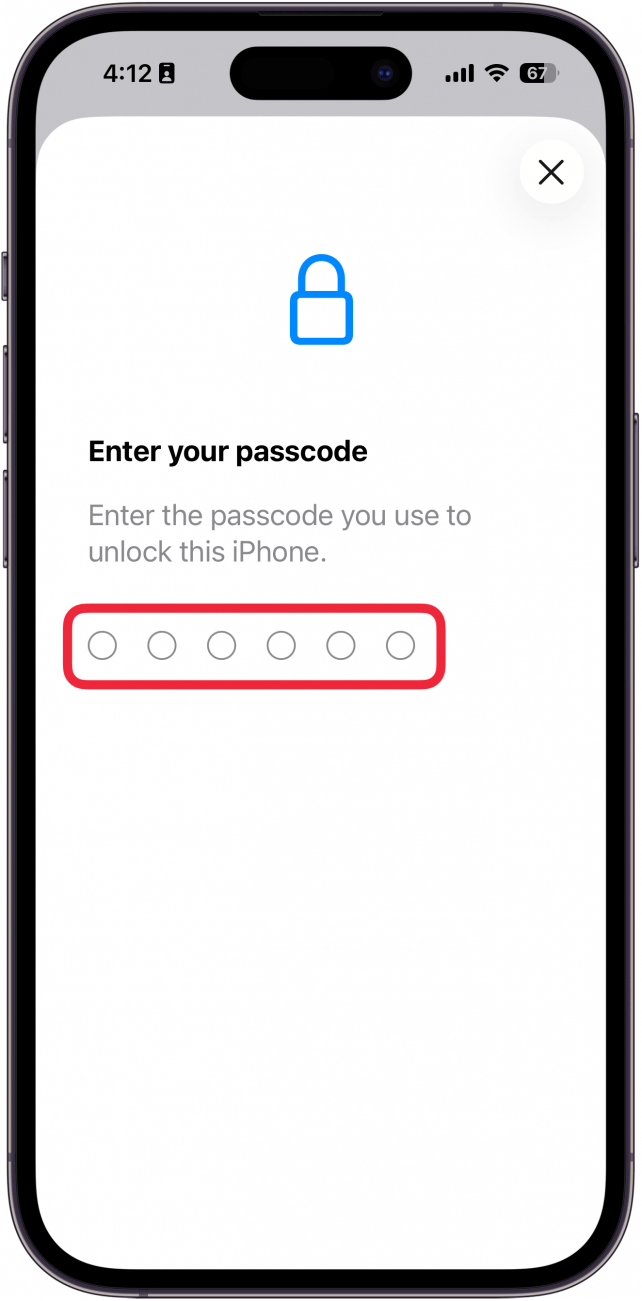
- Enter your passcode.
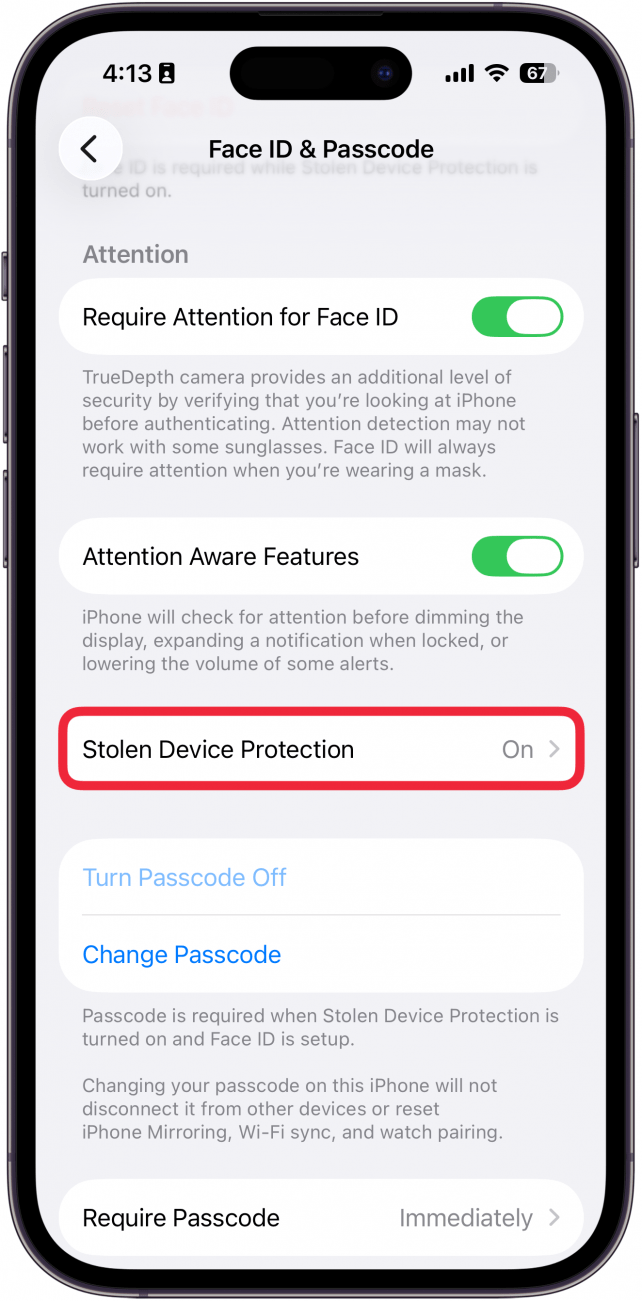
- Tap Stolen Device Protection.
- Select Away from Familiar Locations if you want your device to only enforce the security delay when you're not at home or work.
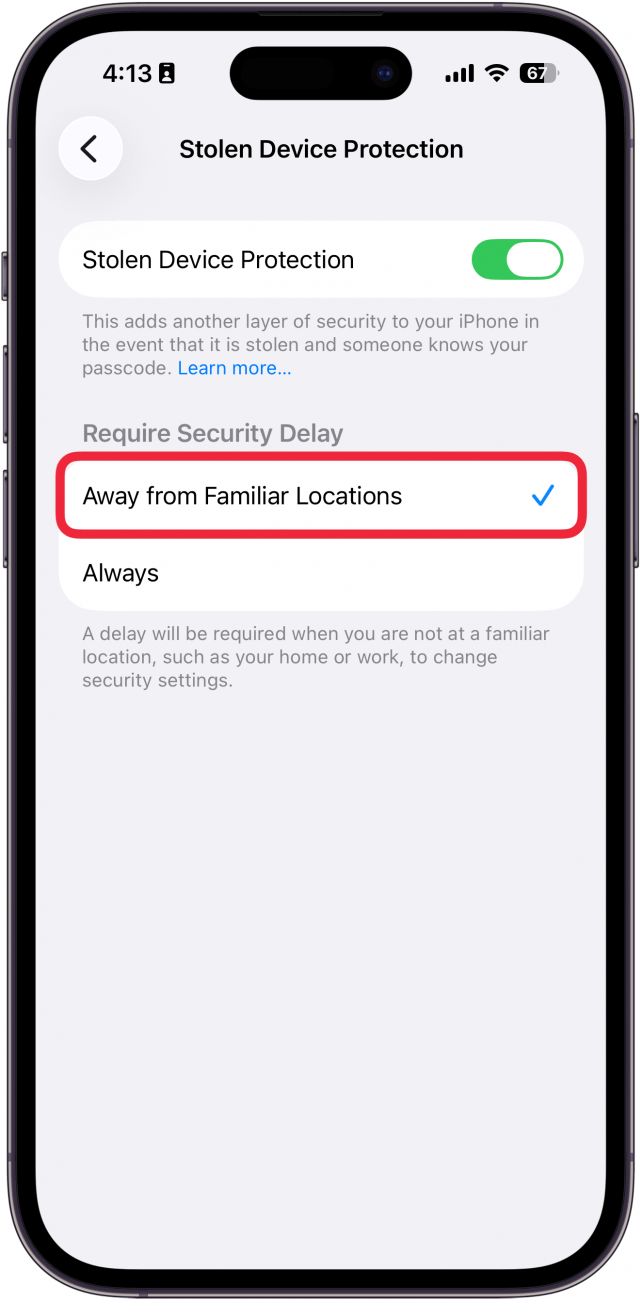
- Select Always if you want your device to always enforce the security delay even if you're at home (which means if you change your mind after you select it, you'll need to wait one hour to change it).
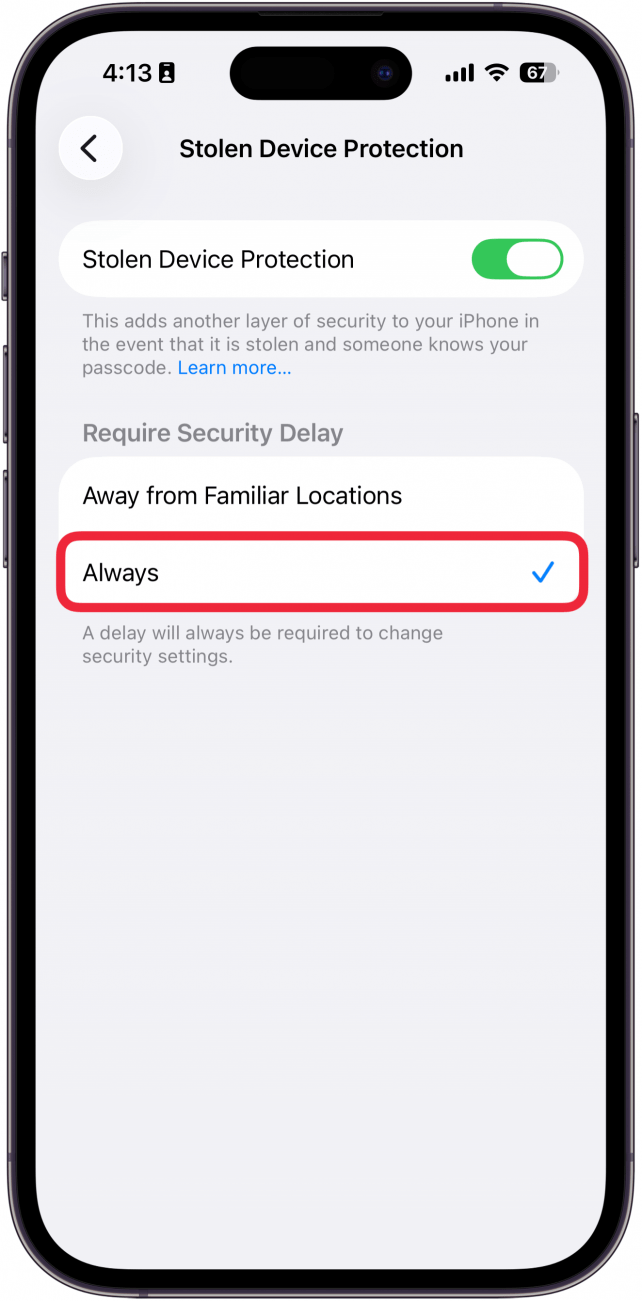
- Tap the toggle next to Stolen Device Protection to disable the feature altogether.
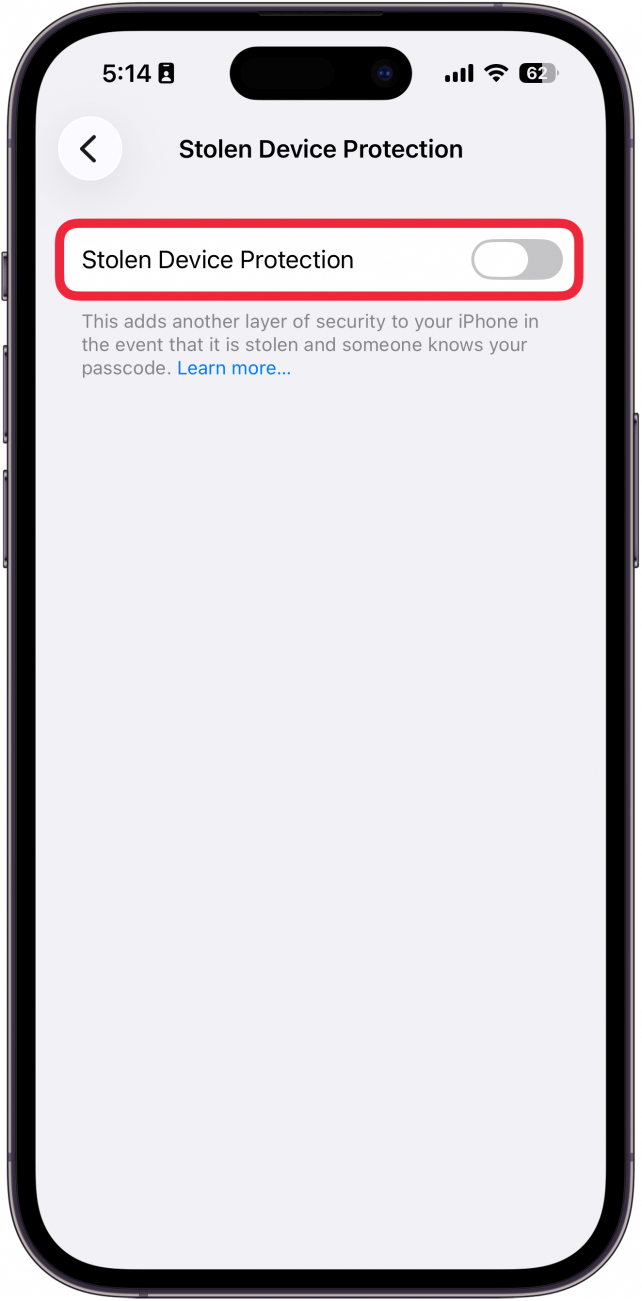
That's how to turn off Stolen Device Protection and disable the Security Delay. Keep in mind that if you have Always selected, you will always have to wait one hour until you can make changes to your device and account security. There is no way to bypass this iPhone security lockout. Next, find out how to do an iPhone emergency reset.

Every day, we send useful tips with screenshots and step-by-step instructions to over 600,000 subscribers for free. You'll be surprised what your Apple devices can really do.

Rhett Intriago
Rhett Intriago is a Feature Writer at iPhone Life, offering his expertise in all things iPhone, Apple Watch, and AirPods. He enjoys writing on topics related to maintaining privacy in a digital world, as well as iPhone security. He’s been a tech enthusiast all his life, with experiences ranging from jailbreaking his iPhone to building his own gaming PC.
Despite his disdain for the beach, Rhett is based in Florida. In his free time, he enjoys playing the latest games, spoiling his cats, or discovering new places with his wife, Kyla.

 Leanne Hays
 Olena Kagui
 Rhett Intriago
 Rachel Needell
 Amy Spitzfaden Both