Securely Share Passwords with Friends & Family

A lifelong tech enthusiast, with experiences ranging from jailbreaking his iPhone to building his own gaming PC, Rhett specializes in maintaining privacy in a digital world and iPhone security.
Learn More A lifelong tech enthusiast, with experiences ranging from jailbreaking his iPhone to building his own gaming PC, Rhett specializes in maintaining privacy in a digital world and iPhone security.
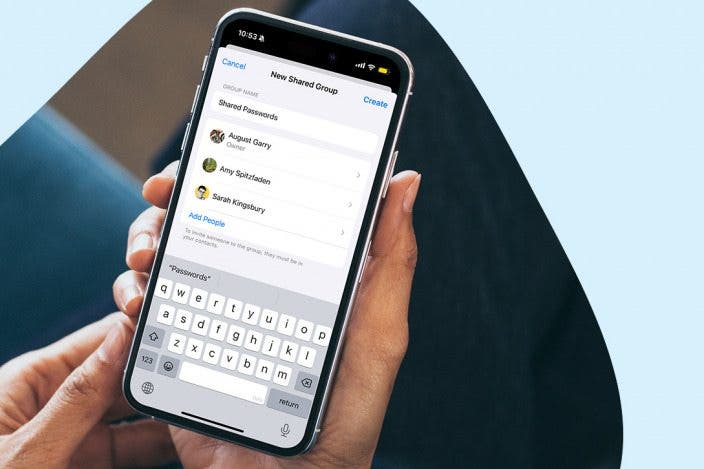
Learn MoreIf you and your family share certain accounts, like streaming services, sharing passwords is probably commonplace in your household. Thankfully, with the Passwords app, you now have the option to share passwords on your iPhone with trusted contacts. Let's go over how to share a password from the Passwords app.
Why You’ll Love This Tip
- Easily and securely share passwords with friends and loved ones.
- Create multiple groups so you can share passwords between specific contacts.
How to Share Passwords on iPhone & iPad
System Requirements
This tip was performed on an iPhone 15 Pro running iOS 26.3.1. Find out how to update to the latest version of iOS.
When creating your shared password group, you can select anyone to be a part of it. These can be people from your Family Sharing group or anyone from your Contacts list. With password sharing groups, you can share passwords securely. For more iPhone security advice, check out our free Tip of the Day. Now, here’s how to securely share a password on your iPhone:
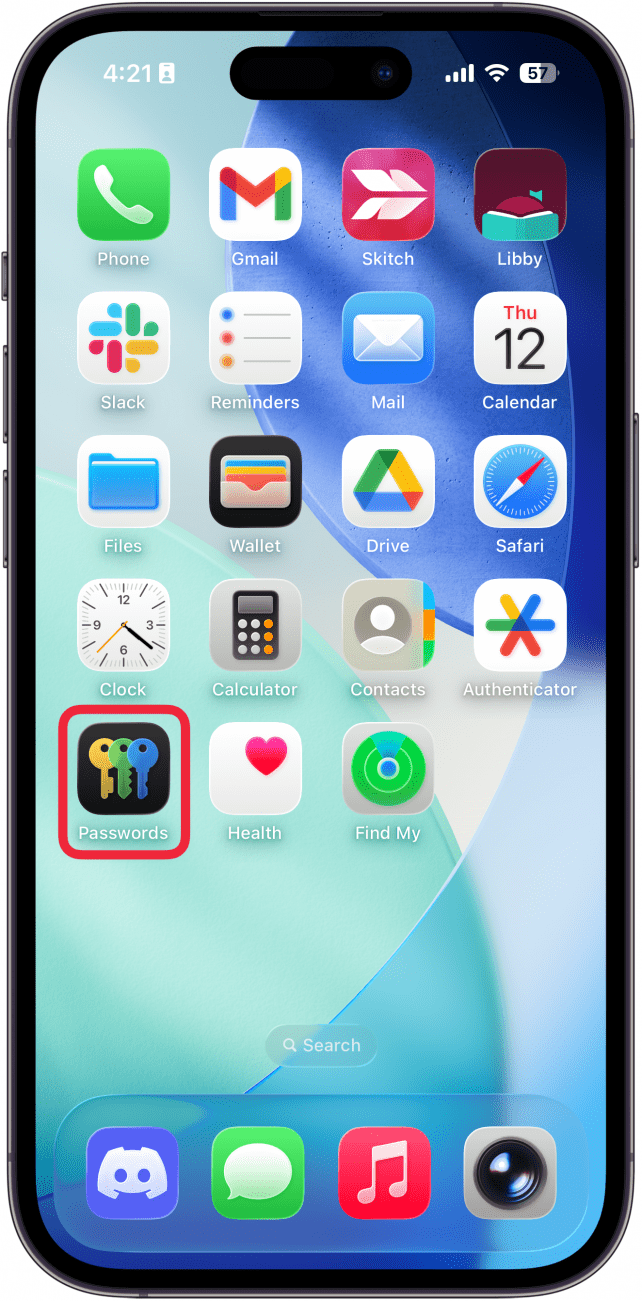
- Open the Passwords app.
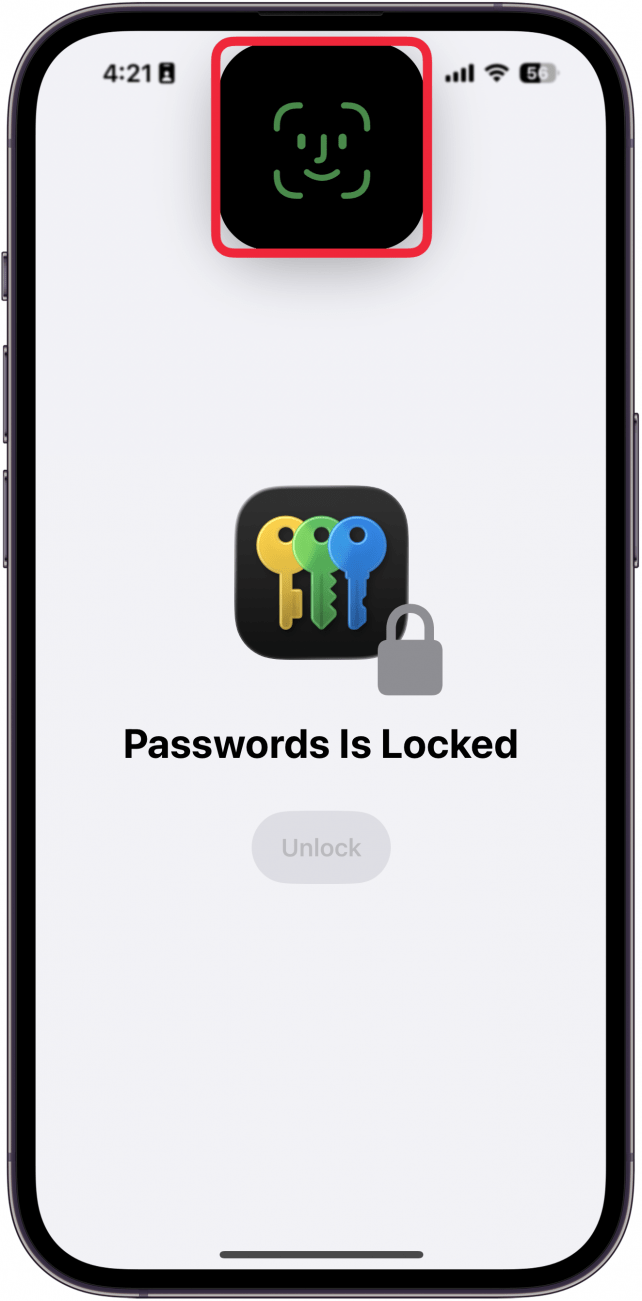
- Use Face ID to log in.
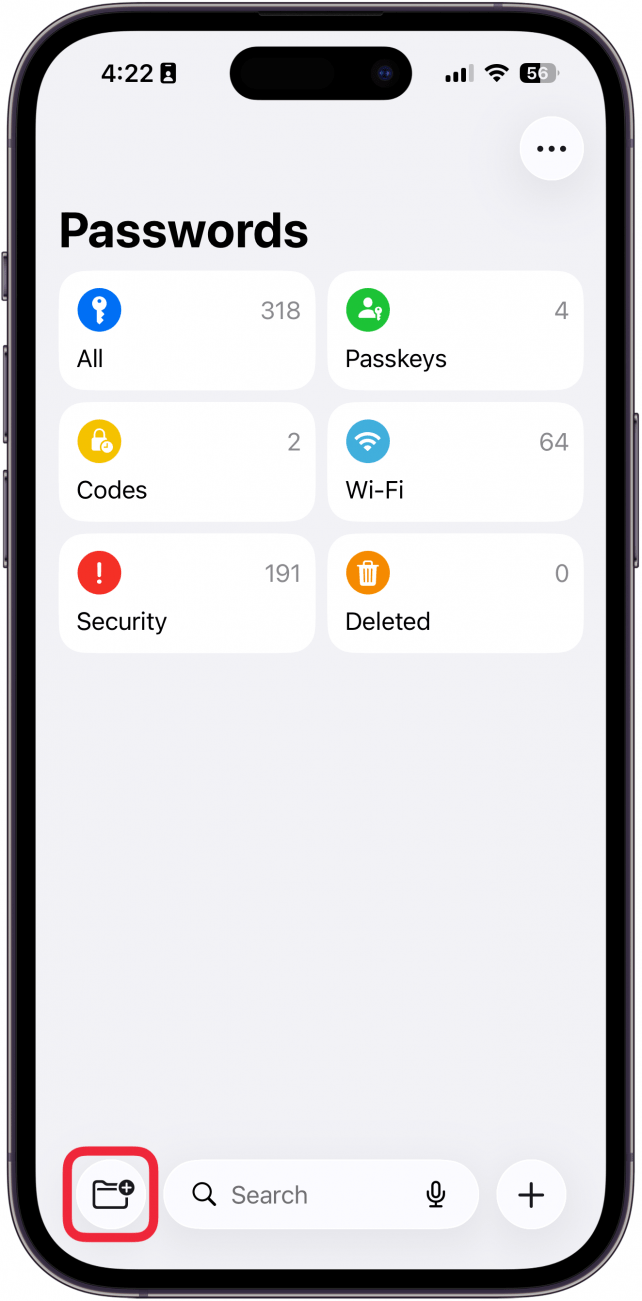
- Tap the New Shared Group button, which looks like a folder with a plus symbol.
- Tap Continue.
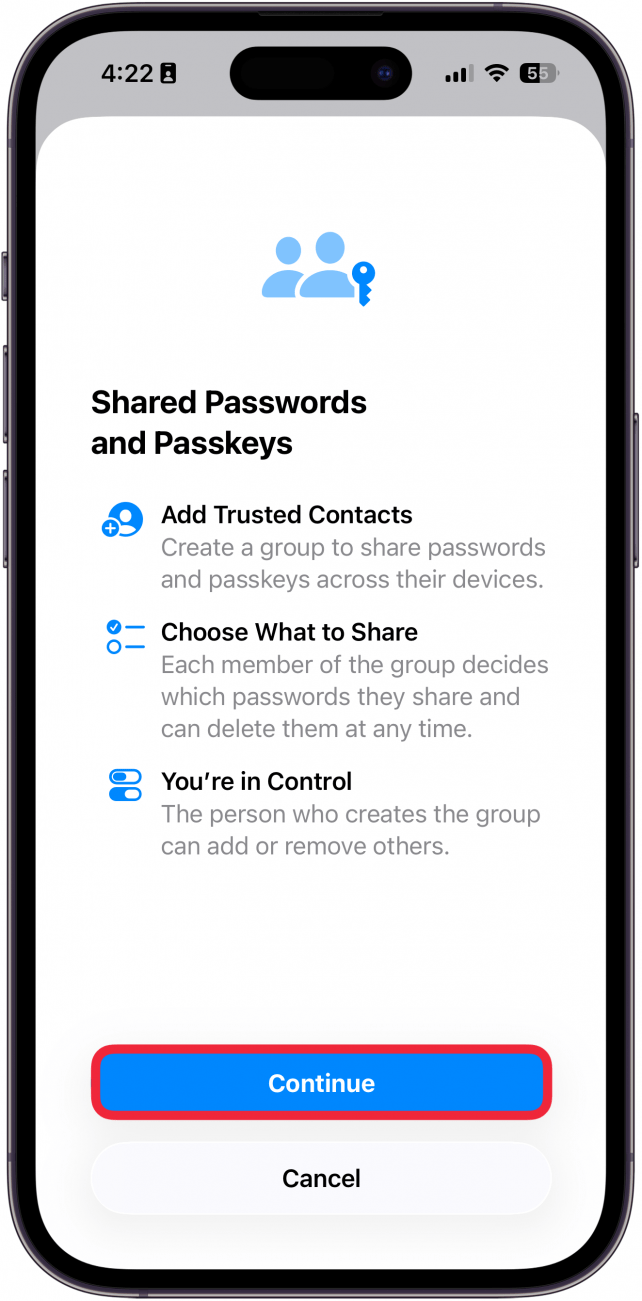
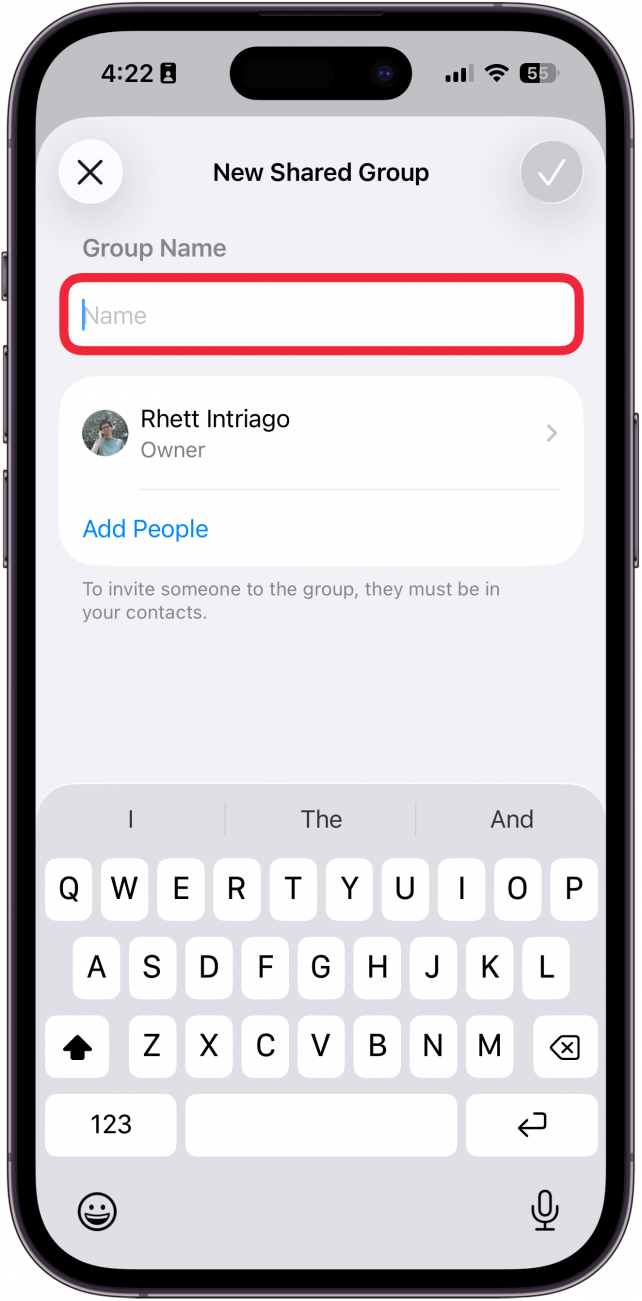
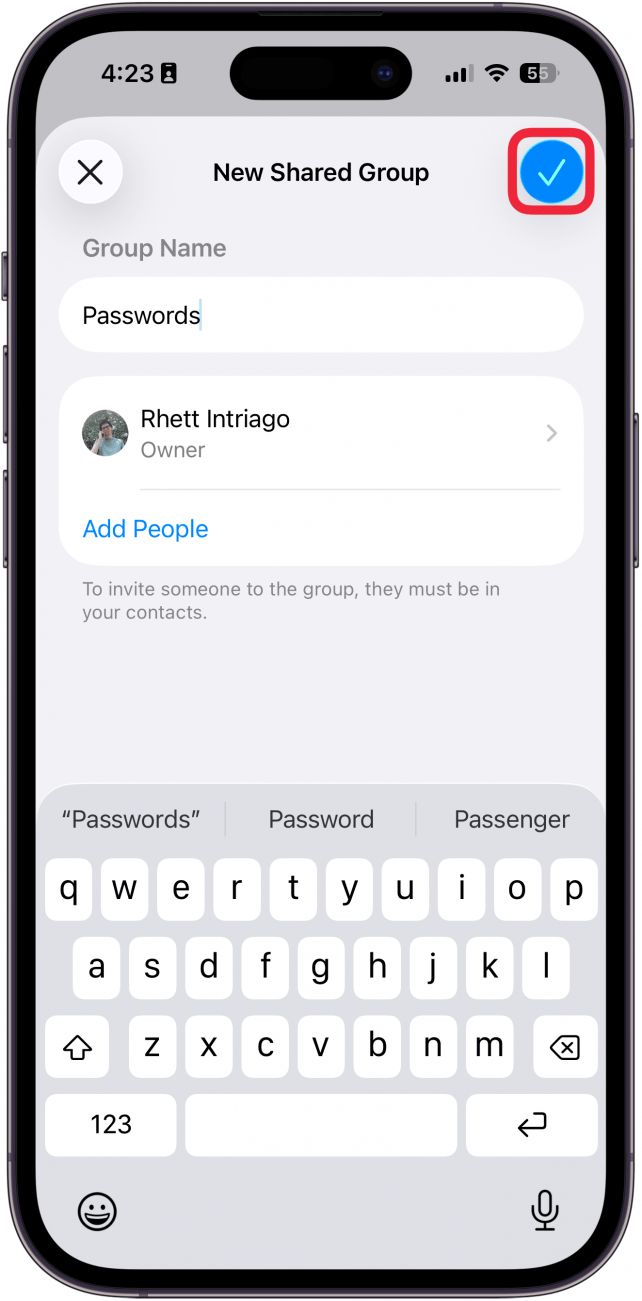
- Give your group a name.
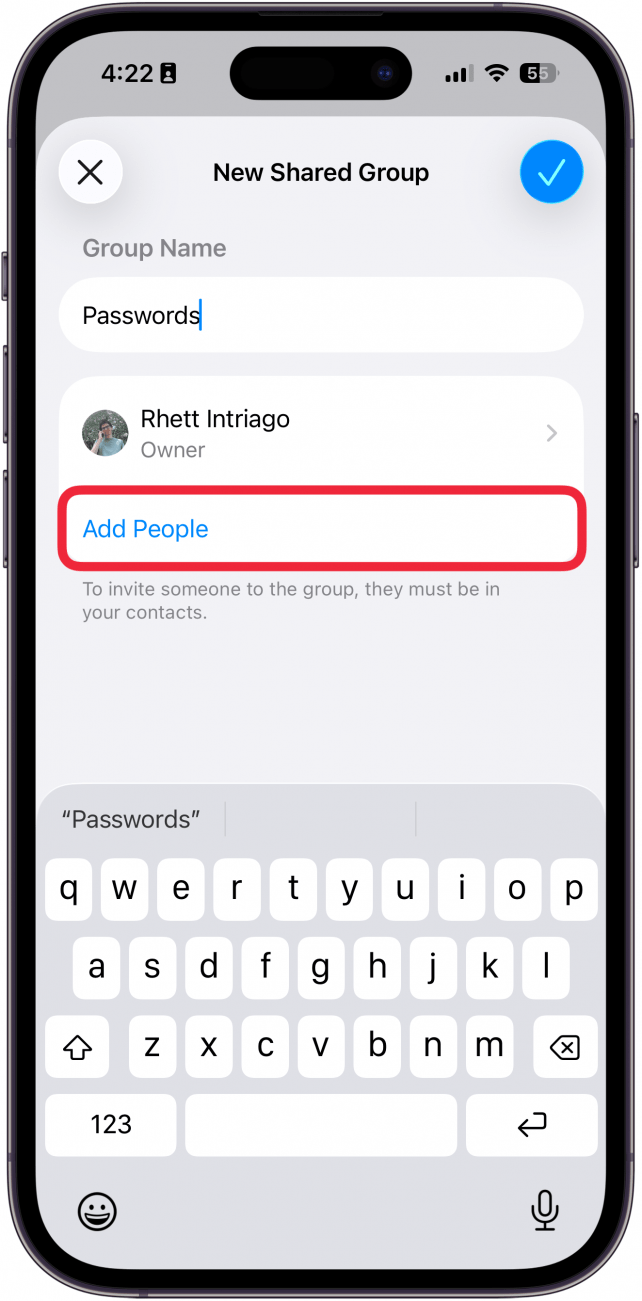
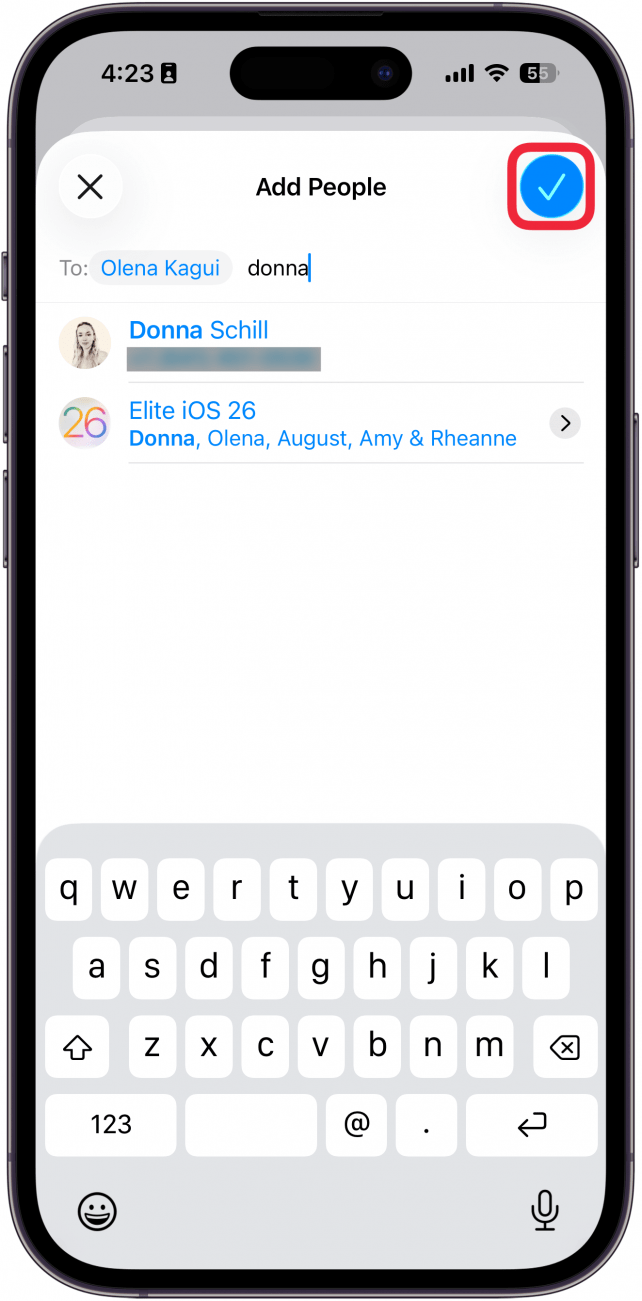
- Tap Add People under your name to add others to your group.
- Enter the names or phone numbers of anyone you want to add to the group. Note: Your contacts must have the latest version of iOS installed on their iPhones.
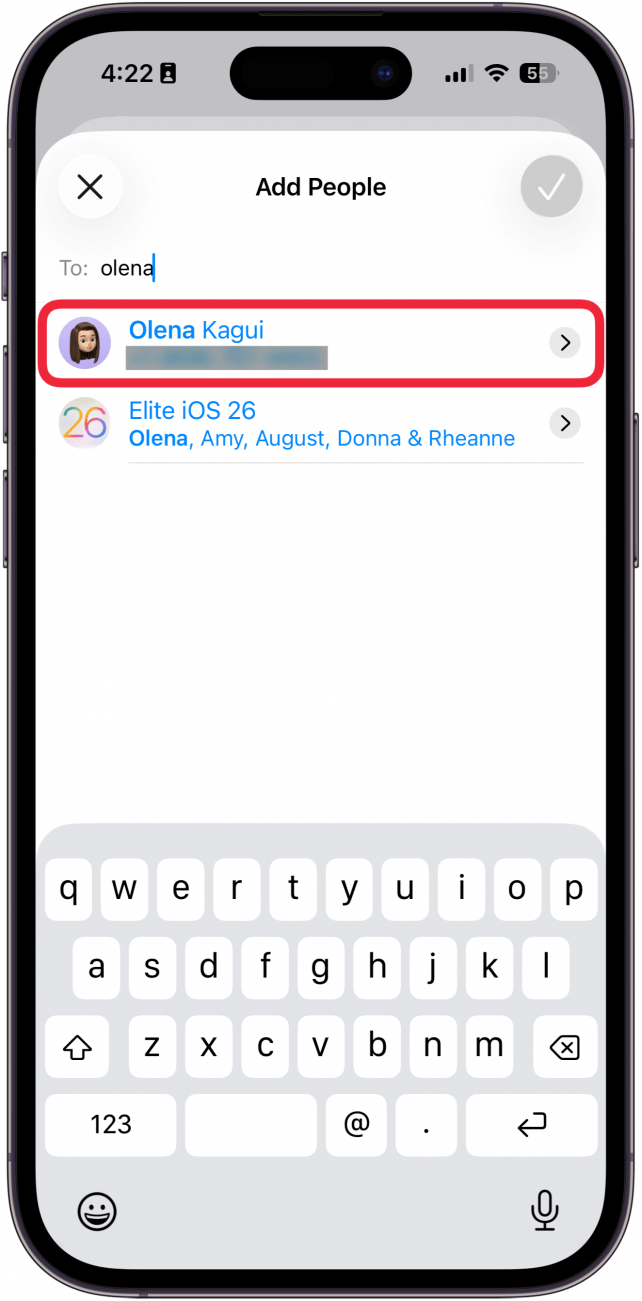
- Tap the checkmark button to add your contact to the password group.
- Tap the checkmark button to create your group.
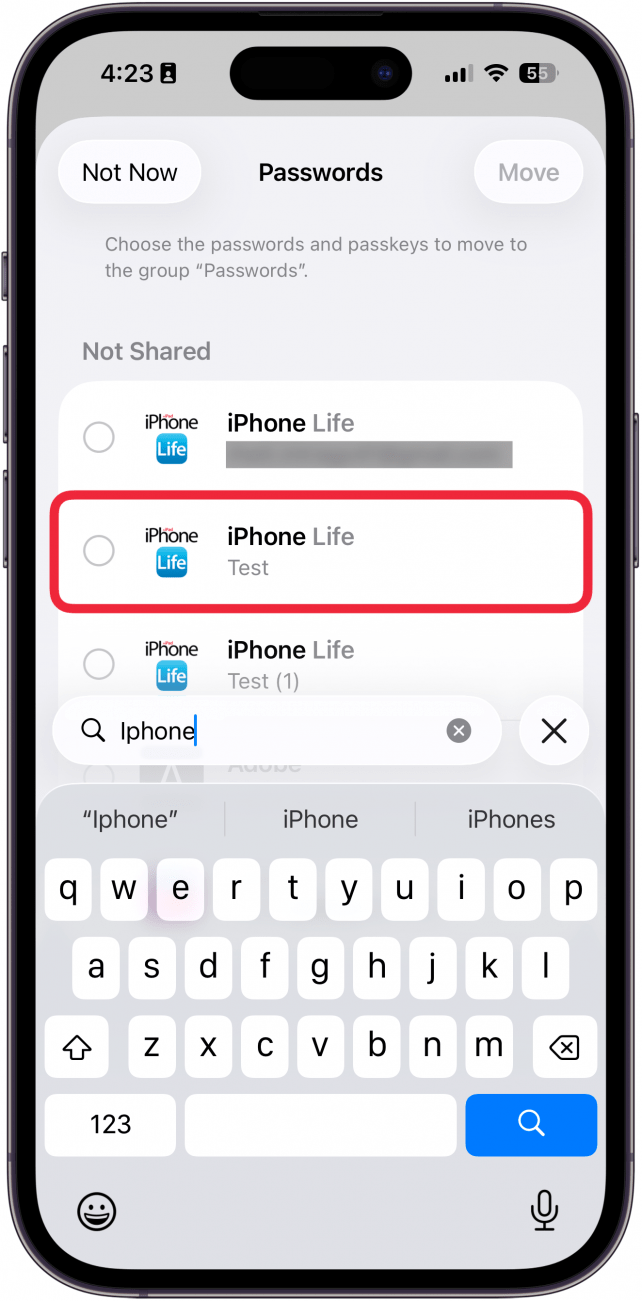
- Select which passwords you want to share.
- Tap Move to move these passwords to the shared group.
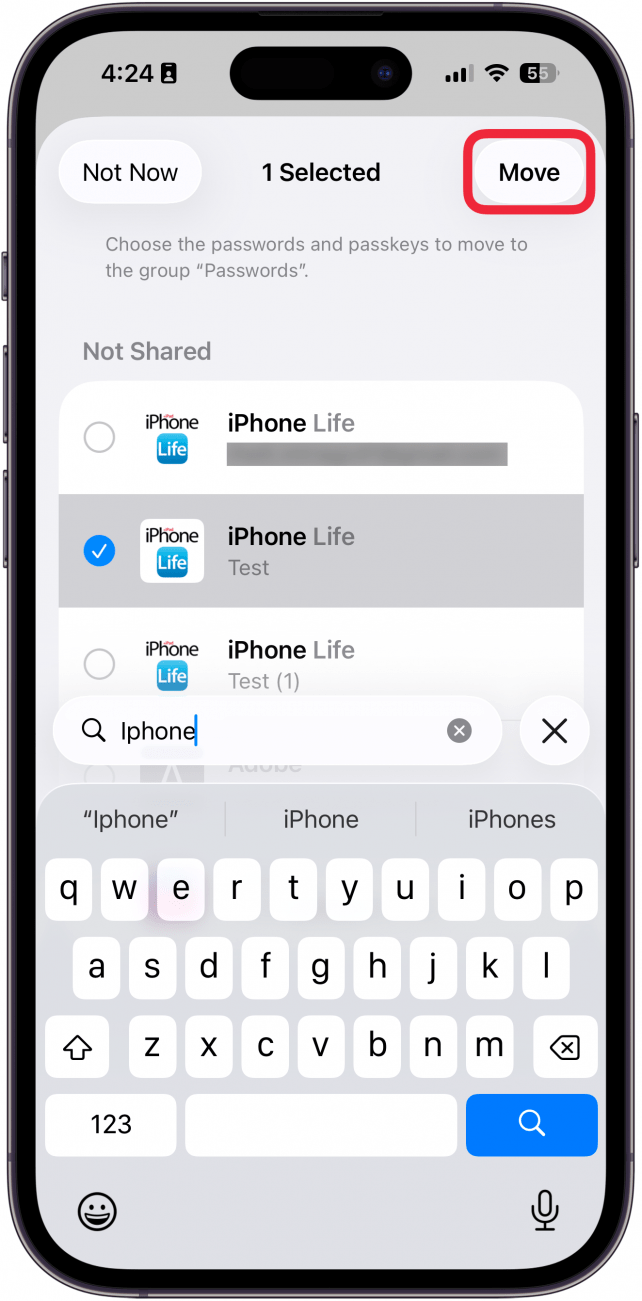
Now you know how to share passwords with family and friends. Your group will have access to the shared passwords and usernames you add to the group. Anyone who is a part of the group can also add their own accounts and passwords so that you and others can have access to them.
You can also create multiple groups, instead of sticking to just one. For example, you can have one group with just you and your roommate with whom you share your Netflix account and another group for you and a significant other with whom you share a bank account. All data in these shared groups are end-to-end encrypted, so you can rest assured that your passwords are safe, which makes this the best way to share passwords with family and friends.
More On: Passwords
Top image credit: panitanphoto / Shutterstock.com

Every day, we send useful tips with screenshots and step-by-step instructions to over 600,000 subscribers for free. You'll be surprised what your Apple devices can really do.

Rhett Intriago
Rhett Intriago is a Feature Writer at iPhone Life, offering his expertise in all things iPhone, Apple Watch, and AirPods. He enjoys writing on topics related to maintaining privacy in a digital world, as well as iPhone security. He’s been a tech enthusiast all his life, with experiences ranging from jailbreaking his iPhone to building his own gaming PC.
Despite his disdain for the beach, Rhett is based in Florida. In his free time, he enjoys playing the latest games, spoiling his cats, or discovering new places with his wife, Kyla.
 Olena Kagui
 Amy Spitzfaden Both
 Leanne Hays

 Donna Schill
 Rachel Needell
 Rhett Intriago


 Cullen Thomas


 Hal Goldstein